
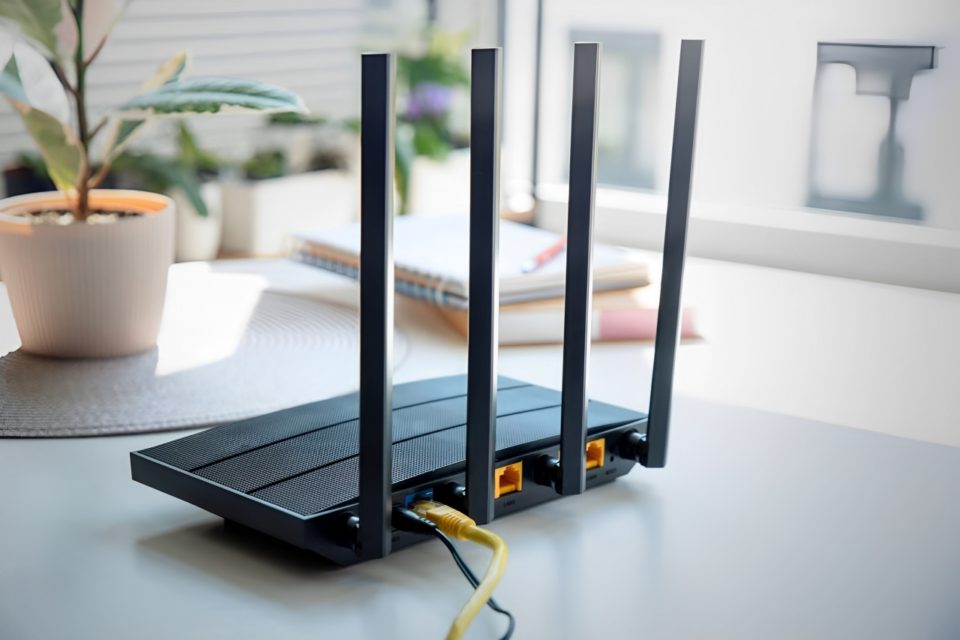
A slow or unreliable Wi-Fi connection can be frustrating, especially when you rely on it for work, streaming, gaming, or video calls. When my home Wi-Fi started acting up, I assumed I needed to buy a new router or invest in an expensive mesh system. However, after some research and troubleshooting, I was able to fix my spotty Wi-Fi without spending a dime on new hardware. If you’re facing similar issues, here’s how I did it—and how you can too.
Find the Wi-Fi Dead Zones
The first thing I did was identify where my Wi-Fi signal was weakest. I used a free Wi-Fi analyzer app on my phone to check signal strength in different parts of my home. Unsurprisingly, I found that areas farthest from my router, especially those with walls and furniture in between, had the weakest signal.
Optimize Router Placement
Many people (including myself) place their routers in corners, near walls, or hidden behind furniture. This can severely limit signal strength. I moved my router to a more central location in my home, ensuring there were fewer obstructions between it and my devices.
Here are some ideal router placement tips:
Elevate the router (I placed mine on a shelf instead of the floor).
Keep it away from large metal objects, such as refrigerators and mirrors.
Position antennas (if available) to maximize coverage—one vertically and one horizontally.
Change Wi-Fi Channels
Routers operate on different channels, and if too many nearby networks are on the same channel, it can lead to interference. Using the same Wi-Fi analyzer app, I checked which channels were the most congested and switched my router to a less crowded one. This small change significantly reduced interference from my neighbors’ Wi-Fi networks.
Adjust Band Settings
Most modern routers support dual-band frequencies—2.4 GHz and 5 GHz. The 2.4 GHz band has a longer range but is more prone to interference, while the 5 GHz band is faster but has a shorter range. I switched some devices (like my laptop and smart TV) to the 5 GHz band for better speed and kept other devices (like smart home gadgets) on 2.4 GHz to avoid congestion.
Reduce Interference from Other Electronics
I discovered that household appliances such as microwave ovens, cordless phones, and baby monitors could interfere with Wi-Fi signals. To minimize this, I moved my router away from these devices and scheduled my heavy internet usage when these appliances were not in use.
Update Router Firmware
An outdated router can be a major cause of poor Wi-Fi performance. I logged into my router’s admin panel and checked for firmware updates. To my surprise, an update was available. After installing it, I noticed a slight improvement in stability and performance.
Limit Bandwidth-Hogging Devices
At any given time, multiple devices in my home were connected to the Wi-Fi, some using more bandwidth than others. Streaming services, online gaming, and video conferencing were major culprits. I prioritized bandwidth-heavy devices using the Quality of Service (QoS) settings on my router, ensuring that work-related tasks and streaming weren’t disrupted by background downloads.
Restart and Reset When Needed
Finally, I got into the habit of restarting my router regularly. Like any electronic device, routers can slow down over time. A quick reboot every few weeks helped maintain performance. Additionally, I reset my router to factory settings once when I noticed persistent slow speeds, which cleared up any lingering issues.
Conclusion
After making these changes, my Wi-Fi improved significantly—without spending a single dollar on new gear. If you’re dealing with a spotty connection, try these steps before rushing to buy a new router. A little optimization can go a long way in making your internet experience smoother and more reliable.
