
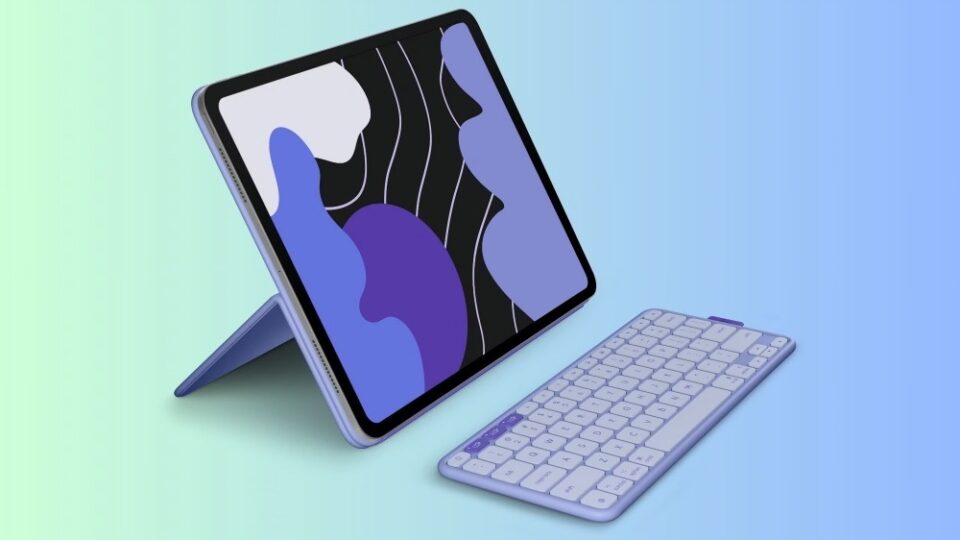
Let’s be honest: Apple makes beautiful hardware, but when it comes to accessories—especially the Magic Keyboard for iPad—it doesn’t always offer the best value. Sleek? Yes. Functional? Somewhat. Worth $300+? That’s where things get tricky.
After months of dealing with Apple’s overpriced and rigid setup, I finally made the switch. I took a chance on a $160 third-party keyboard, and I haven’t looked back since. Here’s how it not only saved me money but genuinely improved the iPad experience in ways Apple’s own accessory couldn’t.
The Problem With Apple’s Magic Keyboard
When Apple released the Magic Keyboard for the iPad Pro, it was a design flex. Floating screen. Magnetic attachment. Built-in trackpad. Cool, right? But use it daily, and the flaws start to show:
- Hefty weight: The iPad becomes nearly as heavy as a MacBook.
- Limited angles: Only two viewing angles? Really?
- High price: Starting at $299, it’s one of the most expensive iPad keyboards on the market.
- No function row: No media keys, no escape key, no brightness adjustment — a real productivity killer.
What you end up with is a beautiful but rigid piece of gear that often feels like it’s more about form than function.
The $160 Upgrade: Function Over Flash
Enter the Logitech Combo Touch — or in my case, a newer model from a boutique brand that promised versatility, performance, and a much lower price tag. At $160, it undercut Apple significantly, but what really sold me was the functionality.
Here’s what stood out:
Full Function Row
Volume control, screen brightness, media playback — all one tap away. It feels like a real keyboard, not a compromised version.
Backlit Keys
Typing in low light? No problem. Unlike Apple’s keyboard, this one gives you adjustable backlighting and more tactile key response.
Detachable Keyboard
The keyboard detaches while keeping the protective case on. That means you can use your iPad for media or drawing without carrying the whole keyboard setup.
Adjustable Kickstand
Gone are the days of awkward angles. This keyboard offers a wide range of positions, perfect for typing, sketching, or watching Netflix in bed.
Trackpad Support
Just like Apple’s, it fully supports iPadOS gestures and cursor navigation. But this one is slightly larger — and surprisingly more responsive.
Real-World Use: Better for Work and Play
I use my iPad for everything: writing, editing, email, occasional photo retouching, and binge-watching after hours. Since switching to the $160 keyboard, my productivity has gone up — not because I’m working harder, but because the experience is frictionless.
Typing is more comfortable, app switching is faster, and the function keys eliminate repetitive swipes and taps. And unlike the Magic Keyboard, it doesn’t feel like I’m locked into a single position or use case.
Design:Not Flashy — Just Functional
No, it doesn’t “float.” And it doesn’t carry the minimalist Apple aesthetic. But it does what I need it to do — and that’s the point. The materials are durable, the keys feel great, and it actually protects the iPad better during travel.
Sometimes, simple just works better.
Conclusion
Apple’s Magic Keyboard might still be the status symbol, but after using this $160 alternative, I’ve realized that what I really needed wasn’t a flashy design — it was flexibility, performance, and practicality.
If you’re using your iPad as a serious productivity machine, don’t assume Apple’s own accessory is the best. There’s a world of better, cheaper options out there — and some of them might just make you love your iPad even more.
This keyboard did that for me. And for half the price? That’s a decision I don’t regret.
