
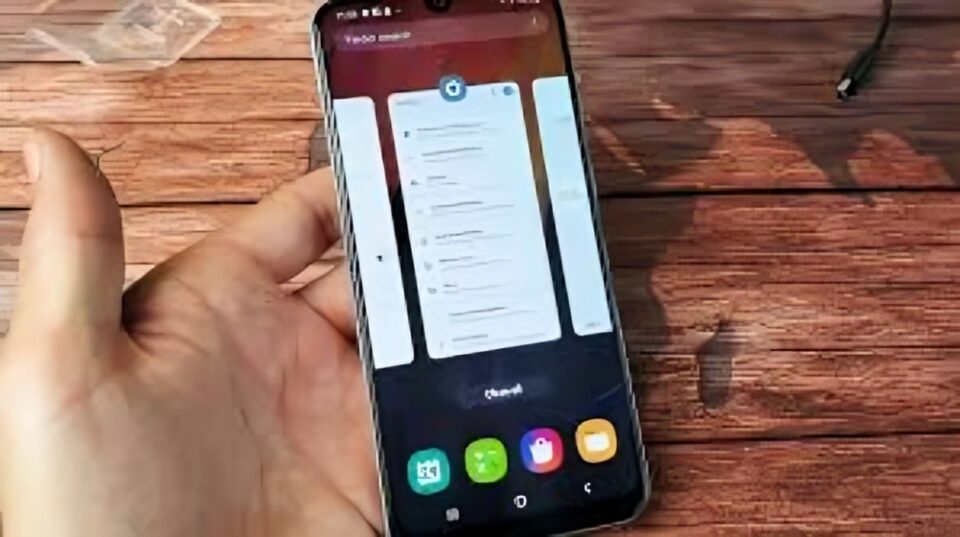
If you own a Samsung smartphone, you’ve probably noticed that some apps continue running even after you’ve closed them. These background apps consume battery, use mobile data, and can slow down your device over time. While Samsung’s One UI is efficient, background app activity can still affect your phone’s overall performance.
The good news is that Samsung devices offer built-in settings and features to help you stop apps from running in the background and reclaim your phone’s speed, battery life, and data usage. In this guide, you’ll learn exactly how to do that step by step.
Why Do Apps Run in the Background?
Many apps—like messaging services, email apps, or social media platforms—stay active in the background to deliver notifications, sync data, or refresh content. While this can be useful, it’s not always necessary, especially for apps you rarely use.
Over time, these background processes can:
Drain your battery faster
Consume mobile data unnecessarily
Slow down device performance
Use Device Care to Close Background Apps
Samsung smartphones come with a built-in Device Care feature that helps you monitor and optimize performance.
How to use it:
Open Settings.
Tap Battery and Device Care (or just Device Care).
Tap Memory.
You’ll see a list of apps running in the background.
Tap Clean Now to stop unnecessary background apps.
Manually Put Apps to Sleep
Samsung also offers the option to put apps to sleep, meaning they won’t run in the background unless you open them.
Steps to follow:
Go to Settings.
Tap Battery and Device Care.
Select Battery → Background usage limits.
Tap Sleeping apps or Deep sleeping apps.
Tap the + Add apps option and select the apps you want to restrict.
Difference:
Sleeping Apps: Won’t run in the background but will resume when opened.
Deep Sleeping Apps: Will never run in the background and won’t receive updates until you open them manually.
Disable Background Data Usage (Optional)
If you want to prevent apps from using mobile data in the background:
Go to Settings.
Tap Connections → Data usage → Mobile data usage.
Select the app you want to restrict.
Toggle off Allow background data usage.
This won’t stop the app entirely but will block it from using mobile data when you’re not actively using it.
Use Developer Options to Limit Background Processes (Advanced)
For users who want tighter control:
Go to Settings → About phone → Software Information.
Tap Build Number 7 times to enable Developer Options.
Go back to Settings → Developer Options.
Scroll down and tap Limit background processes.
Choose how many processes you want running in the background (recommended: 2-3).
Note: This option is more aggressive and can affect how certain apps function.
Uninstall or Disable Unnecessary Apps
If you’re not using an app, the easiest way to stop it from running in the background is to uninstall or disable it:
Uninstall: Removes the app and its data.
Disable: Stops pre-installed apps you cannot uninstall from running or updating.
Conclusion
Background apps are one of the hidden culprits behind poor battery life, sluggish performance, and high data usage. Fortunately, Samsung’s One UI gives you all the tools you need to control, limit, or stop background apps effectively.
By following the steps outlined in this guide—whether it’s through Device Care, background usage limits, or disabling unnecessary apps—you can optimize your Samsung smartphone, extend battery life, and enjoy smoother performance.
Take a few minutes to clean up your background apps today, and you’ll instantly notice the difference in how your phone feels and functions.
