
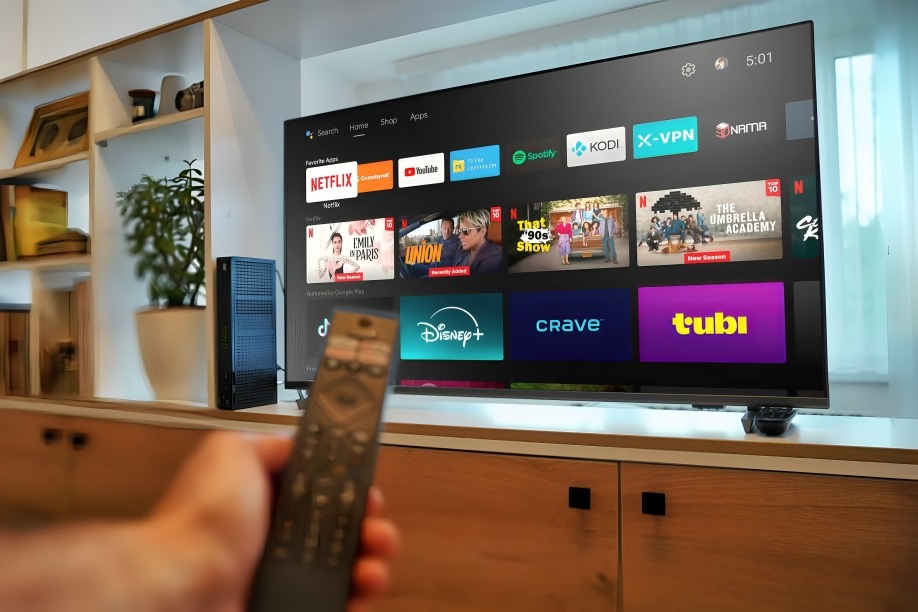
Smart TVs are supposed to make your entertainment life easier, faster, and more seamless — but what happens when your Google TV starts to slow down? Buffering, laggy menus, frozen apps, and slow responses can turn your binge-watching session into a test of patience.
That was my reality not long ago. But instead of replacing the device or resetting it entirely, I dug into the settings, cleared out the digital clutter, and made a few surprisingly simple tweaks. The result? My Google TV is now running faster, smoother, and smarter than ever. Here’s how I gave it a serious speed boost — and how you can too.
Cleared the Cache and Unused App Data
Google TV, like any Android-based system, stores cache files for every app. Over time, this builds up and eats into your storage, slowing things down.
What I did:
- Went to Settings > Apps > See All Apps
- Selected heavy apps like YouTube, Netflix, or games
- Tapped “Clear Cache” and “Clear Data” (for unused ones)
Result: Apps opened faster, and the overall system felt lighter almost immediately.
Uninstalled Bloatware and Inactive Apps
My TV came with pre-installed apps I never used — sports channels, niche games, and outdated media apps. All of them took up space and occasionally ran in the background.
What I did:
- Long-pressed app icons on the home screen or accessed them through Settings
- Uninstalled or disabled anything I hadn’t used in over a month
Result: More available memory and fewer background processes competing for resources.
Disabled Auto-Start for Resource-Hungry Apps
Some apps try to launch themselves in the background when you boot your Google TV — especially streaming services with autoplay previews. That drains both speed and memory.
What I did:
- Navigate to Settings > Apps > Special App Access > Autostart Apps
- Disabled background permissions for apps that didn’t need to run until I opened them
Result: My TV started up faster and lagged less after power on.
Turned Off Unnecessary Animations
Smooth transitions may look cool, but on older or storage-limited devices, they slow everything down.
What I did:
- Enabled Developer Options by going to Settings > System > About > Android TV OS Build (tap 7 times)
- In Developer Options, set Window Animation Scale, Transition Animation Scale, and Animator Duration Scale to 0.5x or Off
Result: Everything from scrolling to opening apps felt snappier and more responsive.
Used a High-Speed USB Drive for Extra Storage
My Google TV was running low on storage, especially after updates and app installs. So I plugged in a USB 3.0 flash drive and formatted it as internal storage.
What I did:
- Connected the USB drive to the TV’s port
- Selected “Format as Device Storage” when prompted
- Moved large apps and games to the USB
Result: More breathing room for the system to operate and better app performance overall.
Restarted Regularly and Enabled “Fast Boot” Mode
Like any smart device, Google TV benefits from a good old-fashioned reboot.
What I did:
- Started manually restarting my TV every few days
- Enabled Fast Boot (if available in settings) to ensure quicker startups
Result: Temporary memory was flushed regularly, keeping performance consistent.
Conclusion
You don’t need to buy a new streaming device or wait for a major update to fix a sluggish Google TV. Sometimes, all it takes is a bit of cleanup, some behind-the-scenes settings, and a USB drive to breathe new life into your setup.
Now, my menus are responsive, apps load quickly, and streaming is smooth — no more lag between clicking and watching. If your Google TV is feeling sluggish, try these steps before giving up on it. You might be just a few tweaks away from a major speed boost.
