
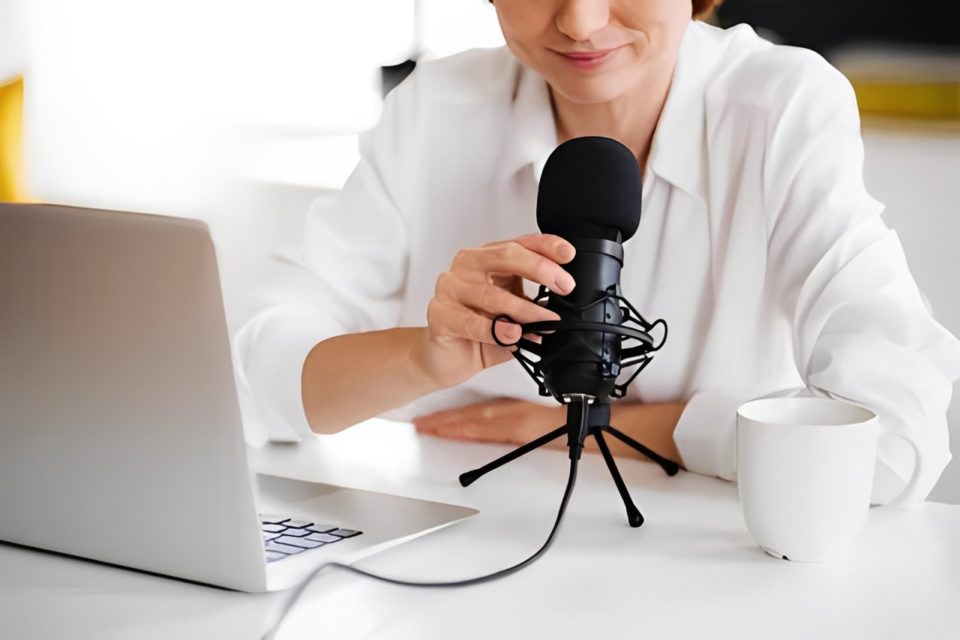
If you’re looking for a quick and easy way to use your smartphone as a microphone for your Windows PC, you’re in luck! Whether it’s for gaming, video calls, podcasts, or other purposes, you can easily turn your phone into a microphone without needing to buy additional hardware. In this guide, we will walk you through the process using a couple of reliable methods.
Why Use Your Smartphone as a Microphone?
Your smartphone’s microphone is already optimized for voice recording and calls, making it a great option for use with your computer. Here are some reasons why using your smartphone as a microphone can be a smart move:
Cost-effective: No need to buy an external microphone.
Portable: Your smartphone is always with you, making it accessible at any time.
High quality: Many smartphone microphones offer surprisingly good sound quality.
Using WO Mic App (Wireless)
WO Mic is one of the most popular apps that lets you use your smartphone as a microphone on a Windows PC. It offers several connection options such as Wi-Fi, Bluetooth, and USB.
Step-by-Step Guide
Download WO Mic App
For Android: Search for WO Mic on the Google Play Store and install it.
For iOS: WO Mic is also available in the Apple App Store.
Install WO Mic Client on Windows
Go to WO Mic’s official website and download the WO Mic Client for Windows. Install the program on your PC.
Download WO Mic Driver
The WO Mic Client requires a specific driver for Windows to recognize your phone as a microphone. Download and install the required driver from the same website.
Connect Smartphone to Windows
Launch the WO Mic app on your phone and the WO Mic Client on your PC. You’ll have three options for connecting your phone to your computer:
Wi-Fi: Connect both your PC and phone to the same Wi-Fi network. In the WO Mic app, select “Wi-Fi” and press “Start.” Enter the IP address shown in the app on your Windows WO Mic Client.
Bluetooth: Pair your phone with your PC via Bluetooth, select “Bluetooth” in the app, and press “Start.”
USB: Connect your phone to the PC via USB. Select “USB” in the app, and press “Start.”
Select WO Mic as Your Windows Microphone
Once the devices are connected, WO Mic will show up in your Windows sound settings. Right-click on the sound icon in the taskbar, go to Sound Settings, and select WO Mic as your input device.
Start Using Your Smartphone as a Microphone
Now, your smartphone should function as a microphone for your PC! You can test it with any application that uses a microphone, such as Skype or Zoom.
Using DroidCam (Wireless and Wired)
DroidCam is another popular app for using your smartphone as a microphone and webcam for Windows. While it’s primarily designed for video, it works equally well as a microphone.
Step-by-Step Guide
Download DroidCam App
For Android: Search for DroidCam in the Google Play Store.
For iOS: You can download it from the Apple App Store.
Install DroidCam Client on Windows
Download and install the DroidCam Windows client from the official DroidCam website.
Connect Your Phone to Your PC
Just like WO Mic, you can connect using Wi-Fi, USB, or Bluetooth. Launch DroidCam on your phone and Windows PC.
Activate Microphone Mode
In the DroidCam app, you’ll have options for video and audio. To use only the microphone, uncheck the video box on the DroidCam PC client and leave the audio option selected.
Set DroidCam as the Default Microphone
Go to your Windows Sound Settings and set DroidCam Audio as your input device.
Using iPhone as a Microphone with iTunes (Wired)
If you’re an iPhone user and want to connect via USB, you can do so using the official Apple software, iTunes, in combination with an app like WO Mic or EpocCam.
Step-by-Step Guide
Install iTunes on Your Windows PC
Ensure that you have the latest version of iTunes installed to manage the iPhone USB connection.
Install WO Mic or EpocCam on iPhone
Download and install the WO Mic app (or EpocCam) from the App Store.
Connect iPhone to Windows via USB
Link your iPhone to your Windows PC using a USB cable. In the WO Mic app, select “USB” as the connection method.
Allow USB Debugging (iPhone Trust)
When prompted, trust the computer on your iPhone. You may need to enable USB debugging on iOS for this to work smoothly.
Set WO Mic/EpocCam as Default Microphone
After connecting the devices, set the app as the default microphone input in Windows settings.
Troubleshooting Tips
Check Permissions: Ensure that both your smartphone and PC have granted microphone permissions to the apps you’re using.
Audio Lag: Some wireless connections may have slight lag. A USB connection will provide the most stable audio stream.
Driver Issues: Make sure that you have installed the necessary drivers for the WO Mic or DroidCam apps to function properly on your Windows PC.
Conclusion
Using your smartphone as a Windows microphone is an easy, cost-effective way to enhance your PC setup without having to purchase additional equipment. Whether you choose WO Mic, DroidCam, or other similar apps, following the steps outlined above will allow you to connect your phone in no time.
By leveraging wireless or USB connections, you can enjoy high-quality audio input for calls, gaming, or recording purposes using the hardware you already have. It’s a practical solution that enhances your digital experience without requiring any extra investment.
