
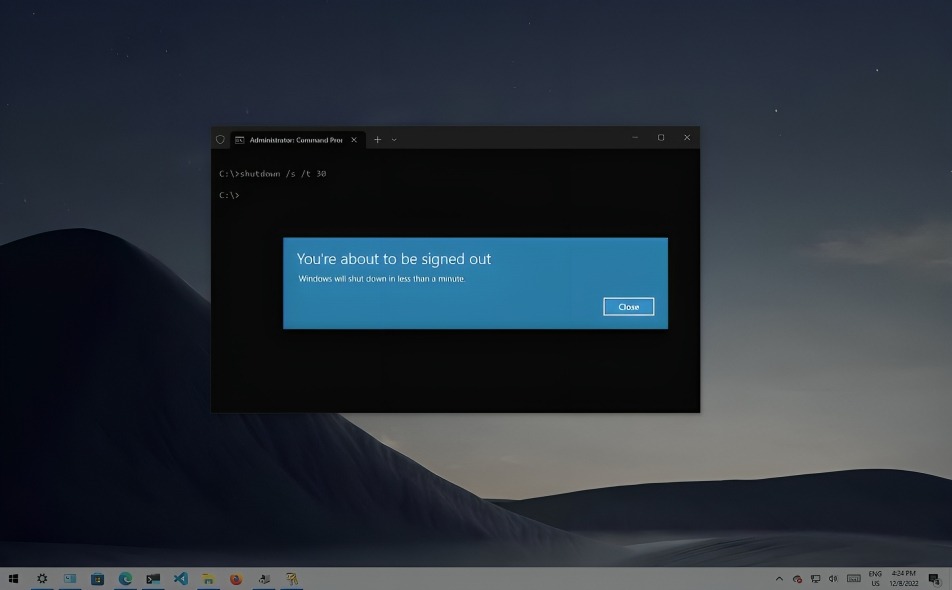
Your computer works hard every day—booting up, running apps, handling downloads, and storing files. Over time, that activity leaves behind clutter, small system errors, and hidden issues that can slow everything down. The good news? Windows comes with built-in tools that can keep your PC running smoothly if you use them regularly. You don’t need to install anything extra—just know which tools to use and when.
Scan and Repair System Files
Sometimes your system files become corrupted or go missing due to software crashes, failed updates, or even power interruptions. Windows includes a built-in system checker that scans for problems and automatically repairs what it finds. Running this tool once a month can prevent slowdowns and weird glitches before they get worse.
Deep Clean and Restore Windows Health
Beyond the basic scan, there’s a more advanced tool that checks the core of your Windows installation for damage. It ensures that your system files are intact and replaces any that are broken. Think of it as a deeper healing process for your PC. Running this occasionally—especially after big updates—can stabilize performance and fix issues that basic troubleshooting can’t.
Check Your Hard Drive’s Health
Every drive, especially older mechanical ones, can develop bad sectors or hidden errors. Windows has a built-in disk check that looks for these issues and repairs them automatically. Running this tool helps prevent data loss and sudden system crashes, keeping your hard drive healthy and reliable.
Refresh Your Internet Connection
If your browser feels slow or certain websites aren’t loading, your computer’s network settings might just need a refresh. Flushing the DNS cache and resetting the network stack can clear out outdated data and fix mysterious connection problems. It’s a quick and safe way to restore smooth browsing.
Clean Up System Junk
Windows automatically collects temporary files, old update data, and other leftovers that take up valuable space. The built-in Disk Cleanup tool helps you safely delete all that unnecessary data. Run it regularly to reclaim storage space, speed up your PC, and reduce system strain.
Optimize Your Hard Drive
If you’re using a traditional hard drive, regular optimization (also known as defragmentation) helps keep your files organized for faster access. It rearranges scattered data so your system doesn’t have to work as hard to find what it needs. However, if your computer uses an SSD, Windows automatically handles optimization—so there’s no need to do this manually.
Reset the Microsoft Store
When the Microsoft Store stops working properly—apps won’t download, updates fail, or pages won’t load—a quick reset can fix it. This built-in reset option clears the store’s cache and gets it running again without removing your installed apps or personal data.
Fix Network Errors Instantly
If your Wi-Fi suddenly disconnects or your PC refuses to connect to the internet, it might be due to corrupted network configurations. Windows has a simple reset command that restores your network settings to default, often solving these problems immediately. It’s like rebooting your PC’s entire internet connection.
Clear Hidden Temporary Folders
Windows stores temporary files in hidden folders to make apps and updates run faster, but over time these folders can become bloated. Deleting their contents occasionally frees up disk space and improves responsiveness. It’s safe, simple, and surprisingly effective at keeping your system clean.
Monitor What’s Running
Ever wondered why your computer feels slow even with no apps open? Windows can show you a complete list of background processes currently running. Checking this helps you identify unnecessary programs that are silently consuming memory and power—so you can close them and restore speed instantly.
Conclusion
You don’t need fancy optimization software or expensive cleaning tools to keep your PC fast and healthy. The system tools built right into Windows are powerful enough to handle most performance and reliability issues—if you use them regularly.
Think of it as preventive care for your computer. Just like a car needs occasional oil changes, your PC needs regular system checks, cleanups, and health scans. Spend a few minutes maintaining it every week, and it will reward you with years of smooth, reliable performance.
Don’t wait until it starts lagging or crashing—treat your PC well, and it won’t let you down.
