
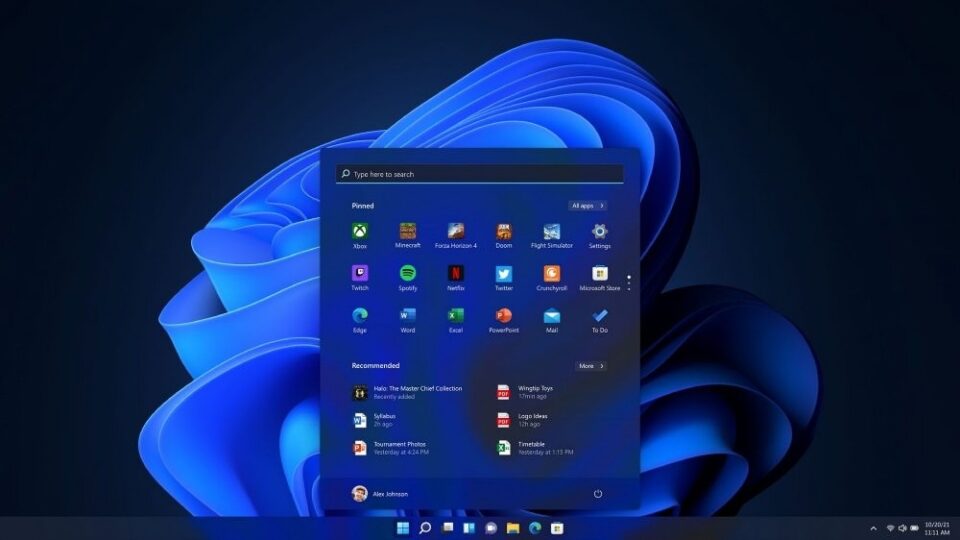
Windows 11 is Microsoft’s most modern operating system yet. With its sleek design, improved performance, and features tailored for productivity, it’s easy to see why so many users have upgraded. But beneath the polished surface lies a growing concern: privacy.
Like Windows 10 before it, Windows 11 comes with built-in telemetry and tracking services. These features collect information about your system usage, app activity, browsing behavior, and even your location. While Microsoft claims this data helps improve the overall user experience, it also raises critical questions about how much control users truly have over their personal information.
The truth is, out-of-the-box Windows 11 is not designed for maximum privacy—it’s designed for data collection. But here’s the good news: with just three powerful tools, you can significantly reduce or even eliminate most of the unwanted tracking.
Let’s break them down one by one.
O&O ShutUp10++ – The One-Click Privacy Guard
If there’s one tool that has become a household name among privacy-conscious Windows users, it’s O&O ShutUp10++. Despite its “Windows 10” branding, this tool works perfectly with Windows 11 as well.
What It Does
ShutUp10++ acts as a centralized control panel for hidden privacy and security settings. Instead of digging through dozens of menus and registry tweaks, the program gives you easy toggles for:
- Disabling Windows telemetry (data collection about your PC usage)
- Turning off location tracking
- Stopping app tracking and background activity
- Disabling advertising ID tracking across apps
- Preventing feedback requests and unnecessary data sharing
Why It’s Useful
ShutUp10++ comes with preconfigured recommendations that make setup simple. You can apply all “safe” settings in just one click, or explore advanced options if you want deeper customization. It’s especially useful for beginners who want to secure their PCs without risking system stability.
Think of it as your privacy starter kit—easy to use, effective, and trusted by millions.
WPD (Windows Privacy Dashboard) – Lightweight but Powerful
Next up is WPD (Windows Privacy Dashboard), a compact yet extremely effective tool for controlling Windows 11’s tracking behavior.
What It Does
WPD gives you direct control over:
- Disabling diagnostic and tracking services that run in the background
- Blocking Microsoft telemetry servers through its integrated firewall manager
- Managing app permissions (like microphone, camera, and location access)
- Tweaking advertising and Cortana-related settings
Why It’s Useful
Unlike ShutUp10++, which focuses on giving you toggles for privacy options, WPD digs a little deeper by combining system tweaks with firewall rules. This means it doesn’t just disable settings—it actively blocks data from leaving your PC.
It’s lightweight, portable, and doesn’t require installation. Just download it, run it, and start reclaiming control over your privacy.
Simplewall – Stop Hidden Connections Cold
Even after using tools like ShutUp10++ and WPD, Windows 11 may still attempt to send data back to Microsoft servers. This is where Simplewall comes in, acting as the final line of defense.
What It Does
Simplewall is a lightweight firewall application designed specifically to control outbound and inbound connections. It helps you:
- Block all hidden background connections from Windows and apps
- Whitelist only the programs you trust to access the internet
- Get real-time notifications when new apps try to connect online
- Prevent Windows services from bypassing your privacy tweaks
Why It’s Useful
What makes Simplewall unique is its simplicity. While traditional firewalls can feel overwhelming, Simplewall is designed with minimalism in mind. It works quietly in the background, giving you full transparency into what’s trying to leave your system.
This tool ensures that even if Windows tries to “phone home” after you’ve disabled telemetry, those attempts get blocked.
Extra Tips for Maximum Privacy
While these three tools will cover most of your privacy needs, here are a few extra steps you can take for an even more secure setup:
- Disable Personalized Ads: Go to Settings > Privacy & Security > General and turn off ad tracking.
- Turn Off Cortana: If you don’t use Microsoft’s digital assistant, disabling it prevents unnecessary data collection.
- Use a Local Account: Instead of signing in with your Microsoft account, create a local offline account to reduce synchronization and cloud-based tracking.
- Limit App Permissions: Review which apps have access to your microphone, camera, and location.
Conclusion
Windows 11 may look new and polished, but its approach to user privacy hasn’t changed much from Windows 10. Data collection remains deeply embedded in the system. However, with the right tools, you don’t have to accept it.O&O ShutUp10++ gives you one-click control over hidden privacy settings.WPD (Windows Privacy Dashboard) combines system tweaks with firewall rules for deeper protection.Simplewall ensures no hidden connections escape your system without your knowledge.Together, these three tools create a privacy shield around your PC, allowing you to enjoy the benefits of Windows 11 without sacrificing your digital freedom.
The result? A cleaner, faster, and more private computing experience. With just a little setup, you can turn Windows 11 into an operating system that works for you—not the other way around.Do you want me to now create a step-by-step installation & setup guide with screenshots for these three tools so it feels like a full tutorial article?
