
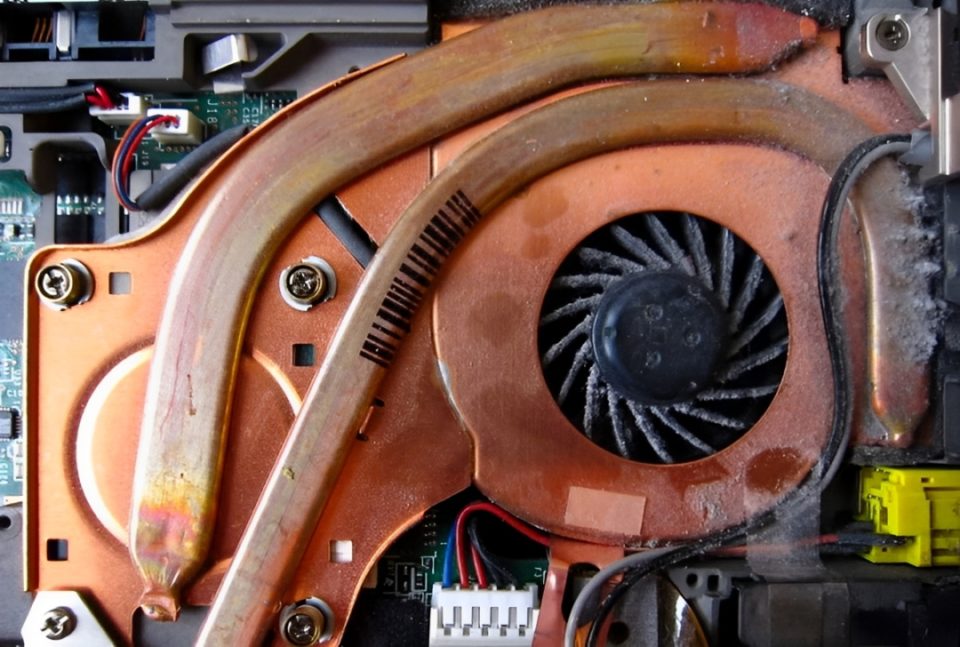
A noisy laptop fan can be distracting and frustrating, especially when you’re trying to focus on work or enjoy a quiet environment. While laptop fans are essential for keeping your device cool, excessive noise often indicates dust buildup, overheating, or heavy processing demands. Fortunately, there are simple steps you can take to reduce fan noise and improve your laptop’s performance.
Clean the Laptop’s Vents and Fan
Over time, dust and debris accumulate inside your laptop, blocking airflow and causing the fan to work harder than necessary. Cleaning the vents and fan can significantly reduce noise and prevent overheating.
How to clean your laptop fan:
Turn off the laptop and unplug it.
Use a can of compressed air to blow out dirt from the vents.
If you are snug establishing your laptop, cautiously cast off the panel again and ease the fan with a gentle brush or compressed air.
Regular cleaning every few months can keep your laptop running efficiently.
Adjust Power Settings to Reduce Fan Usage
Your laptop’s fan works harder when the system is under heavy load. Adjusting power settings can reduce CPU usage and, in turn, minimize fan noise.
How to change power settings:
On Windows: Go to Control Panel → Power Options → Select Balanced or Power Saver mode.
On macOS: Open System Settings → Battery → Adjust Energy Saver settings to optimize performance.
These settings help your laptop use energy more efficiently, keeping the fan noise at a minimum.
Close Unnecessary Programs and Background Tasks
Running too many programs at once can overwork your processor, making the fan spin faster to cool down the system.
How to reduce system load:
Check the Task Manager (Windows) or Activity Monitor (Mac) to identify high-resource programs.
Close any unnecessary applications or browser tabs.
Disable startup programs that you don’t need.
Reducing CPU strain will help keep your fan quieter and extend your laptop’s lifespan.
Use a Cooling Pad or Improve Ventilation
If your laptop gets too hot, the fan will run at full speed to cool it down. A cooling pad provides extra airflow, helping to lower the temperature and reduce noise.
Other ventilation tips:
Place your laptop on a hard, flat surface instead of a soft bed or couch.
Avoid blocking air vents with books or other objects.
Use an external cooling pad for extra airflow, especially during gaming or intensive tasks.
Better ventilation means your fan doesn’t have to work as hard, making it much quieter.
Update Your Laptop’s Software and BIOS
Sometimes, outdated software or a buggy BIOS can cause your fan to behave erratically. Keeping your system updated can help optimize fan control and improve efficiency.
How to update your system:
Check for Windows or macOS updates and install them.
Update drivers, especially for your laptop’s cooling system.
Visit the manufacturer’s website to check for BIOS updates, but proceed with caution—BIOS updates should only be done if necessary.
Conclusion
A noisy laptop fan is often a sign of overheating or excessive system load. By cleaning your fan, adjusting power settings, closing unnecessary programs, improving ventilation, and keeping your software updated, you can significantly reduce fan noise and enhance your laptop’s performance. If the noise persists despite these efforts, it may be a sign of a failing fan that needs professional replacement.
Take care of your laptop, and it will run smoothly—and quietly—for years to come!
