
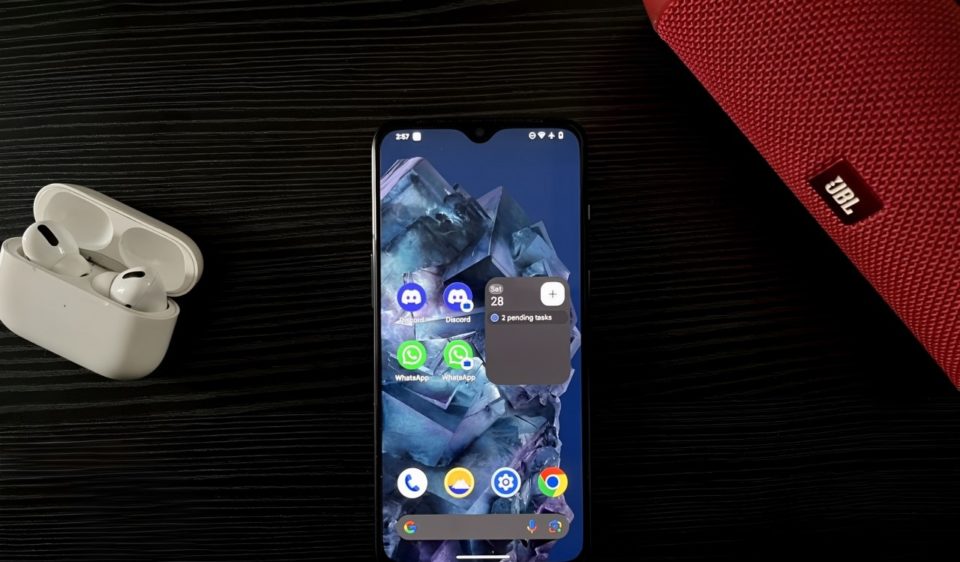
In today’s digital age, many users find themselves needing two copies of the same app on their Android device. Whether it’s for separating work and personal accounts, managing multiple social media profiles, or using different WhatsApp numbers, having dual instances of an app can be highly beneficial. Fortunately, Android offers multiple ways to achieve this, from built-in features to third-party apps. This guide will walk you through various methods to install two copies of the same app on your Android device.
Using Built-in App Cloning Features
Many modern Android smartphones come with built-in app cloning features. These allow you to create a duplicate of an app without installing third-party software. Here’s how to use this feature on some popular brands:
For Samsung Devices (Dual Messenger):
Open Settings on your phone.
Navigate to Advanced Features > Dual Messenger.
You’ll see a list of apps that support duplication (e.g., WhatsApp, Facebook, Messenger).
Toggle the switch next to the app you want to clone.
The second app copy will appear on your home screen with a small duplicate icon.
For Xiaomi Devices (Dual Apps):
Open Settings.
Tap on Apps > Dual Apps.
Select the app you want to duplicate and toggle it on.
A second version of the app will be created.
For OnePlus Devices (Parallel Apps):
Open Settings.
Go to Utilities > Parallel Apps.
Select the app you want to clone.
The duplicate app will appear in your app drawer.
Using Third-Party App Cloners
If your phone doesn’t have a built-in cloning feature, you can use third-party apps to create a duplicate. Here are some of the best options:
Parallel Space
Parallel Space is one of the most popular cloning apps, allowing you to run multiple accounts of the same app.
How to use Parallel Space:
Download Parallel Space from the Google Play Store.
Open the app and select the app you want to clone.
Tap Add to Parallel Space to create a duplicate.
Launch the cloned app from Parallel Space.
Dual Space
Dual Space is another excellent app for cloning apps, especially for social media and messaging apps.
How to use Dual Space:
Download Dual Space from the Play Store.
Open the app and select the app you want to duplicate.
Launch the second instance from within Dual Space.
Island (For Advanced Users)
Island uses Android’s work profile feature to create a sandboxed environment for cloned apps. This is more secure and effective for certain apps.
How to use Island:
Download Island from the Play Store.
Follow the setup instructions to enable work mode.
Add the app you want to clone within Island.
Use the cloned app from the Island workspace.
Using Multiple User Profiles
Android allows you to create multiple user accounts on a single device, each with its own set of apps. This is a great alternative for running two instances of the same app.
How to use multiple users for app duplication:
Open Settings.
Scroll to Users & accounts > Multiple users (this may vary by brand).
Tap Add user and set up a new profile.
Switch to the new user profile and install the desired app again.
Conclusion
There are multiple ways to install and run two copies of the same app on your Android device. If your phone has a built-in feature like Dual Messenger, Dual Apps, or Parallel Apps, that’s the easiest method. If not, third-party apps like Parallel Space or Dual Space can get the job done. For more advanced users, Island and multiple user profiles offer additional flexibility. By using these methods, you can efficiently manage multiple accounts without constantly logging in and out. Choose the method that best suits your needs and enjoy the convenience of dual app functionality on Android!
