
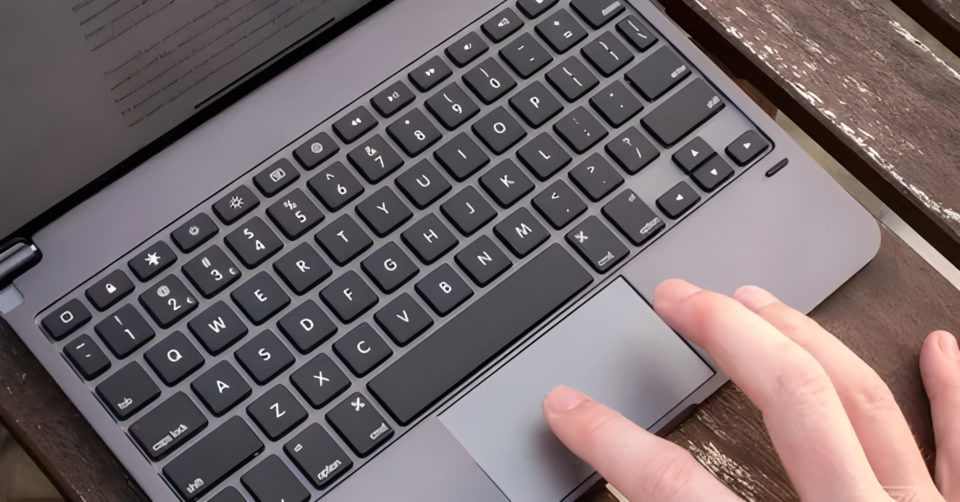
Switching from Windows to macOS can be disorienting, especially with differences in the keyboard shortcuts and trackpad gestures. If you’re a long-time Windows user but love the aesthetics and performance of a Mac, you can tweak some settings to make your Mac’s trackpad and keyboard feel more like Windows. Here are eight settings you can change to bridge the gap between these two worlds.
Adjust the Trackpad Scroll Direction
By default, macOS uses “natural” scrolling, which mimics the way touchscreens scroll. However, this can feel reversed for Windows users, where scrolling up moves content down, and vice versa.
Go to: System Settings > Trackpad > Scroll & Zoom.
Uncheck: “Scroll direction: Natural.”
Now, the scrolling will work as it does in Windows, where dragging your fingers down scrolls down, and up scrolls up.
Enable Right-Click (Secondary Click)
Windows users are accustomed to a right-click to bring up context menus. On Mac, you can enable right-click by tapping with two fingers.
Go to: System Settings > Trackpad > Point & Click.
Check: “Secondary click,” and set it to “Click with two fingers.”
Now, you can right-click by using a two-finger tap on the trackpad, similar to the right-click on a Windows mouse.
Remap the Command Key to Control
On Windows, the Ctrl key is used for many shortcuts (e.g., Ctrl + C to copy, Ctrl + V to paste). On Mac, the Command key (⌘) takes this role, which can be confusing for Windows users. You can swap the Command key with Control for a more familiar layout.
Go to: System Settings > Keyboard > Modifier Keys.
Change the action of the Command key to Control.
Now, keyboard shortcuts like Ctrl + C, Ctrl + V, and Ctrl + Z will work just as they do on Windows.
Tap to Click
Windows laptops often come with tap-to-click enabled by default, where a light tap on the trackpad registers as a click. You can enable this on your Mac for a similar experience.
Go to: System Settings > Trackpad > Point & Click.
Check: “Tap to click.”
This setting allows you to tap the trackpad lightly instead of pressing down to click.
Enable Three-Finger Drag
In Windows, dragging windows or text can be done by holding down the left-click and dragging. macOS has a feature called “Three-Finger Drag,” which lets you drag without clicking hard.
Go to: System Settings > Accessibility > Pointer Control > Trackpad Options.
Check: “Enable dragging” and select “Three Finger Drag.”
This gesture allows you to move windows, icons, and more using three fingers on the trackpad without needing to click.
Reconfigure Mission Control Hot Corners
On macOS, the trackpad gesture for Mission Control (which shows all open apps) can feel different compared to Windows Task View. You can configure “Hot Corners” to get a similar function to Windows’ corner actions.
Go to: System Settings > Desktop & Dock > Hot Corners.
Assign a corner of the screen to “Mission Control” or “Application Windows” to view all open applications with a simple gesture.
This gives you quick access to an overview of open apps, much like Windows Task View.
Keyboard Shortcuts for Window Management
Windows offers robust window management with shortcuts like Win + Arrow keys for snapping windows to the side of the screen. macOS doesn’t have the same built-in functionality, but you can use third-party apps like Magnet or Rectangle to bring this feature to Mac.
Download and install Magnet or Rectangle from the App Store.
After installing, you can use shortcuts like Ctrl + Option + Left/Right Arrow to snap windows to either side of the screen.
This makes multitasking easier and more Windows-like on macOS.
Disable Auto-Correct and Smart Quotes
Auto-correct can be overly aggressive in macOS, and some users may prefer to have more control over what they type. Additionally, macOS uses “smart quotes” by default, which Windows users might not be accustomed to.
Go to: System Settings > Keyboard > Text.
Uncheck: “Correct spelling automatically” and “Use smart quotes and dashes.”
Now, typing will be more predictable, and quotes will behave as they do in Windows.
Bonus Tip: Install a Windows-Like Keyboard Layout
For a more seamless experience, you can install a custom keyboard layout that mimics the exact layout and behavior of a Windows keyboard. This can help align special characters and punctuation keys with what you’re used to.
Conclusion
With these changes, you’ll find your Mac behaving much more like a Windows machine, especially in terms of trackpad gestures and keyboard shortcuts. Whether you’re switching back and forth between operating systems or simply prefer the Windows-style input, these tweaks will help smooth out the transition. Enjoy the best of both worlds: the design of macOS with the functionality of Windows!
