
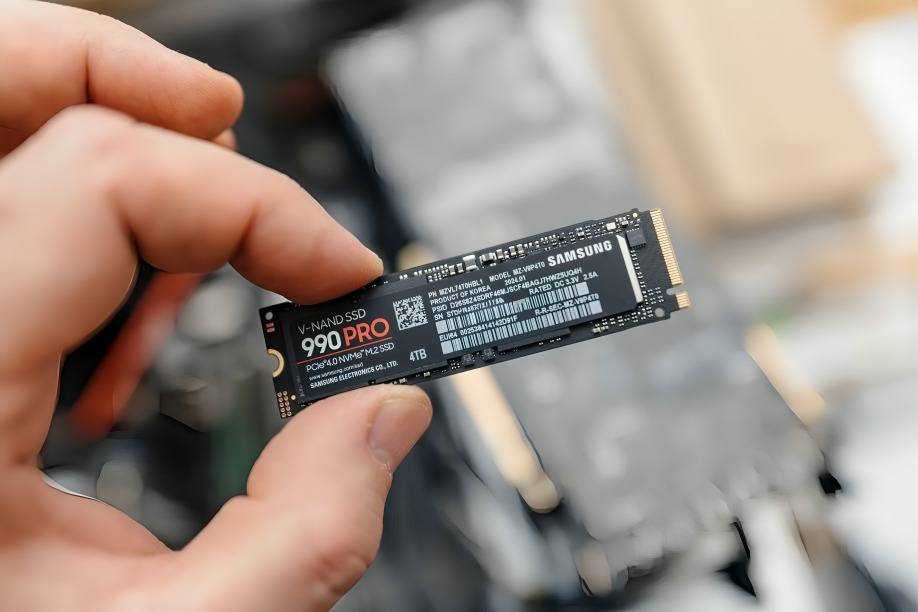
NVMe SSDs are known for their blazing-fast read and write speeds, making them a popular upgrade for gamers, content creators, and everyday PC users. But are you getting the most out of your NVMe drive? Even the fastest hardware can slow down without the right setup or care.
Here are 6 simple ways to boost your NVMe SSD’s performance—no tech wizardry required.
Enable or Check PCIe 4.0/5.0 Support
If your motherboard and CPU support PCIe Gen 4 or Gen 5, make sure your NVMe drive is installed in the correct M.2 slot that supports it. Using an older or limited PCIe lane (like Gen 3) can throttle your SSD’s full potential.
Check your BIOS or motherboard manual to confirm slot compatibility.
Keep Your Firmware Up to Date
SSD manufacturers often release firmware updates to fix bugs, improve stability, and even enhance performance. Outdated firmware can limit speed and reliability.
Visit your SSD brand’s official website and use their update tools (e.g., Samsung Magician, WD Dashboard, Crucial Storage Executive).
Turn on AHCI Mode in BIOS
Advanced Host Controller Interface (AHCI) is essential for optimal SSD performance. If your BIOS is set to IDE or RAID (and you’re not using RAID), switching to AHCI can boost speed and stability.
Warning: Changing this after OS installation can cause boot issues. Always back up first or enable AHCI before installing Windows.
Enable TRIM and Disable Indexing
TRIM allows the SSD to manage unused data blocks more efficiently, which helps maintain performance over time. Meanwhile, disabling Windows indexing on the SSD prevents unnecessary background operations that can slow things down.
To check TRIM:
Open Command Prompt and enter:
fsutil behavior query DisableDeleteNotify
- A result of 0 means TRIM is enabled.
To disable indexing:
Right-click on the drive → Properties → Uncheck “Allow files on this drive to have contents indexed…”
Use High-Performance Power Settings
Windows power-saving settings can throttle NVMe SSDs to conserve energy. Switch to High Performance or Ultimate Performance mode for consistent speed.
Go to: Control Panel → Power Options → Select “High Performance” or create a custom plan that never puts the drive to sleep.
Avoid Overfilling Your SSD
As a rule of thumb, try to keep at least 10-20% of your NVMe drive free. A nearly full SSD can lead to slower write speeds due to limited space for wear leveling and temporary cache usage.
Move non-essential files (like games, media, or backups) to a secondary drive to free up space.
Conclusion
NVMe SSDs are incredibly fast by design, but a few smart tweaks can make sure you’re unlocking every bit of performance. By updating firmware, optimizing settings, and maintaining good habits like keeping space free, you’ll keep your SSD running smoothly for years to come.
Whether you’re gaming, editing video, or just speeding up your daily tasks, these tips can make a noticeable difference—without needing any expensive upgrades.
Let me know if you’d like a quick checklist version or an infographic-style summary!
