
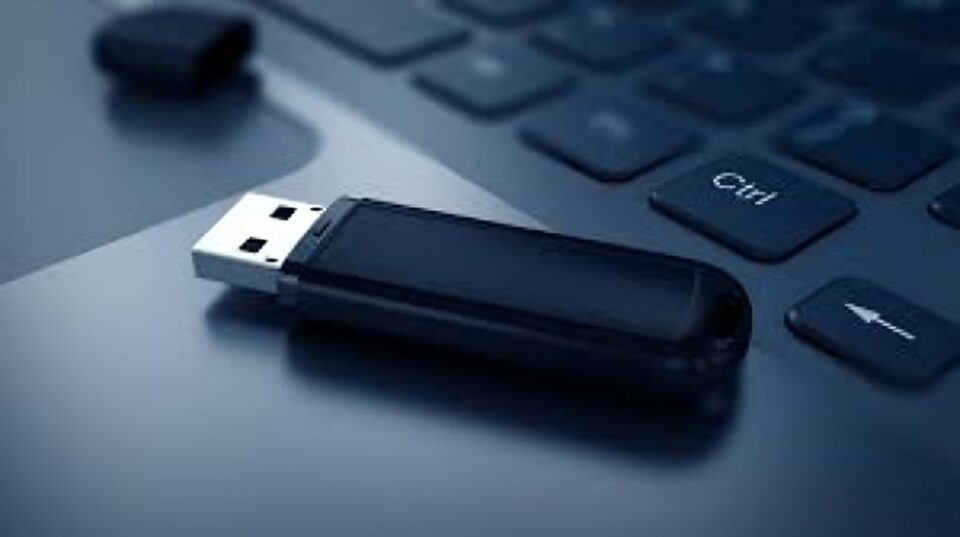
If you’ve ever wished you could turn a spare USB stick into a physical key for your PC—so you just plug it in to unlock, and pull it out to lock—there are free tools that do exactly that. They won’t replace hardened FIDO2 hardware keys like a YubiKey for web authentication, but if your goal is quick, local lock/unlock or a second factor for Windows login, these utilities are a handy, low-cost option.
Below I’ll explain the simplest tools, how they work, setup basics, security trade-offs, and better alternatives if you need higher assurance.
What these apps do (quick summary)
Apps such as USB Raptor and Rohos Logon Key (Free) let you register a USB flash drive as an authentication token. Once configured, the software watches for the presence (or absence) of that USB device and will lock your desktop when the drive is removed and unlock when it’s inserted—or use the USB as a second factor for signing into Windows. They’re easy to set up and useful for local PC protection.
How they work (basic mechanics)
These programs typically create an encrypted “key file” or token on the USB drive. The PC-side service continually checks whether that file exists on any attached USB. If it detects the token, it considers the physical key present and allows access; if not, it locks the session or requires an alternative login. Setup usually takes a few clicks: choose the USB, create the token (often protected by a PIN), and enable the monitoring service.
Popular free options
- USB Raptor — Lightweight, open on SourceForge, focused on locking/unlocking Windows when a specific USB drive is removed/inserted. Good for users who want a simple physical lock/unlock behavior.
- Rohos Logon Key Free — Lets you use a USB drive (or even a smartphone) as a login token for Windows and offers additional features in paid versions. Rohos has been around for a while and targets users who want password replacement or 2FA for Windows login.
(Several tech sites and recent roundups have featured the same tools—if you read a headline like “This free app turns any USB into a PC security key,” it’s often referring to utilities like these.)
Step-by-step setup (general)
- Download and install the app (official site or trusted repository).
- Insert the USB stick you want to use.
- Run the app’s “create key” or “register USB” option; it writes an encrypted token to the stick.
- Optionally set a PIN or fallback password for emergency access.
- Turn on the background service/monitor so it locks or unlocks based on the USB’s presence.
Always keep at least one backup login method (and ideally a second USB key) in case the drive is lost or damaged. SourceForge+1
Security: what you should know
These USB-as-key apps are convenient, but they’re not the same as FIDO2 hardware security keys (YubiKey, Nitrokey, etc.). Commercial hardware keys store cryptographic secrets inside tamper-resistant hardware and implement standardized protocols (U2F/FIDO2) for phishing-resistant web logins. Software token files on a USB can be copied if an attacker gains access to the file or the device; their protections depend on the encryption and the app’s implementation. If you need phishing-resistant, cross-service authentication (for Google, Microsoft accounts, password managers), use a certified FIDO2 key. WIRED+1
Windows itself now supports passkeys and FIDO2 security keys natively for many account scenarios—so for modern, web-facing account security, a hardware FIDO2 key is the stronger choice. Microsoft Support
Pros and cons
Pros
- Free or low cost.
- Easy to set up for local lock/unlock or Windows login.
- Repurposes spare USB sticks you already own.
Cons
- Less secure than dedicated FIDO2 hardware keys.
- If the USB token file is copied or the PC is compromised, the protection can be bypassed.
- Not a standard method for web services—limited to local machine login unless paired with other tools.
Who should use this
Use these tools if you want simple physical control over a single PC (for example, locking a shared workstation when you step away). Avoid relying on them as your sole defense for online accounts, sensitive data, or enterprise environments that require strong, standardized authentication.
Alternatives to consider
- YubiKey / Nitrokey / other FIDO2 keys — Best for phishing-resistant logins across services. WIRED+1
- Windows passkeys / built-in security key support — Use native FIDO2 support where available for integrated security. Microsoft Support
Conclusion
Turning a USB stick into a PC security key is a practical, inexpensive way to add a physical layer of protection to a local machine. For everyday desktop convenience—locking and unlocking, or adding a second factor for Windows logins—free tools like USB Raptor and Rohos can do the job. But for anything that must stand up to phishing, active attackers, or compliance requirements, invest in a purpose-built FIDO2 hardware key and use the operating system’s native support for best protection.
Want a short, copy-ready how-to (with download links and a step-by-step screenshot guide) for your blog or newsletter? I can draft that next
