
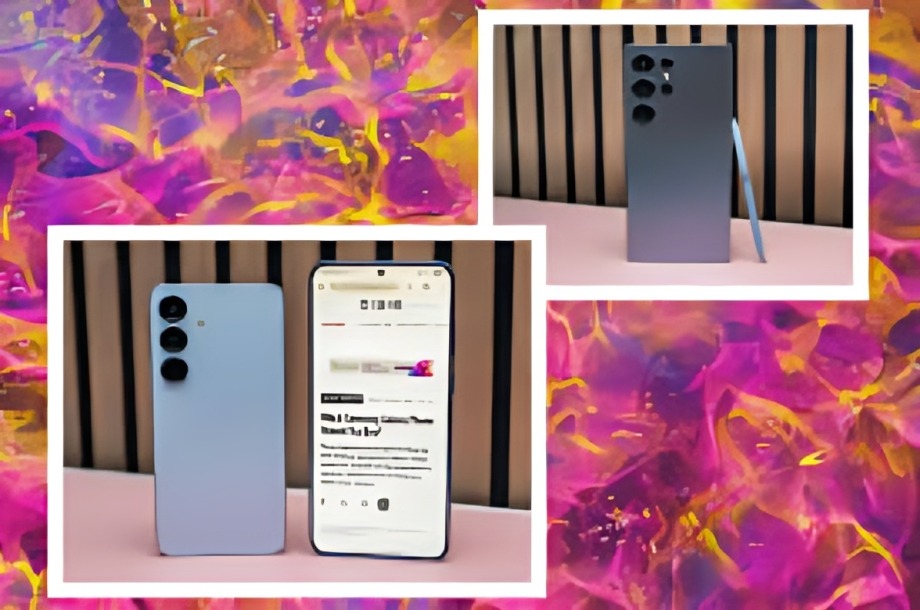
Switching phones is always a mix of excitement and adjustment. After years of using another brand, I recently made the jump to Samsung—and while the hardware immediately impressed me, it was the hidden settings that completely transformed my experience. Samsung packs in tons of customization options that aren’t always obvious at first glance, but once you tweak them, the phone feels more personal, smoother, and much easier to use.
Here are the settings that made my switch to Samsung so much better:
Navigation Gestures
Out of the box, Samsung often uses the traditional three-button navigation bar. But switching to gesture navigation makes the phone feel more modern and gives you extra screen space. Swiping up to go home or switching apps quickly became second nature.
Edge Panels
The Edge Panels feature is one of Samsung’s best-kept secrets. A simple swipe from the side of the screen opens shortcuts to apps, contacts, and tools like a clipboard or calculator. It saves time and keeps everything I use most right at my fingertips.
Always-On Display Customization
Samsung’s Always-On Display isn’t just about seeing the time—it can be customized with colors, clock styles, or even GIFs. Now, I can glance at my phone and instantly see the info I care about without unlocking it.
Dark Mode and Eye Comfort Shield
Switching on Dark Mode not only looks sleek but also saves battery on AMOLED screens. Paired with the Eye Comfort Shield, which reduces blue light automatically in the evening, it makes late-night scrolling much easier on the eyes.
Battery and Device Care
Samsung’s Device Care settings give you detailed control over battery optimization. I enabled adaptive battery so the phone learns my usage patterns, and now I get much better longevity without having to micromanage apps.
Good Lock Customization
Installing Good Lock (Samsung’s customization app) opened up a whole new world. From tweaking the lock screen to creating custom quick settings layouts, it made my phone feel completely mine.
Secure Folder
Samsung’s Secure Folder is a game-changer for privacy. I can keep apps, photos, or files locked away separately with biometric protection. It’s like having a hidden phone inside my phone.
Link to Windows
With Link to Windows, I connected my Samsung to my PC and can now check texts, make calls, and drag files without even picking up my phone. It feels like a productivity upgrade I didn’t know I needed.
Bixby Routines
I wasn’t sure about Bixby at first, but Bixby Routines turned out to be surprisingly useful. Now my phone automatically switches to silent at night, turns on Wi-Fi when I get home, and saves power when I’m at work—all without me touching a button.
Camera Modes and Pro Settings
Samsung’s camera is already powerful, but diving into the Pro Mode settings gave me DSLR-like control. Adjusting exposure, white balance, and focus manually makes a huge difference in capturing the perfect shot.
Conclusion
Switching to Samsung is more than just picking up a new phone—it’s about unlocking its hidden strengths. These settings and features transformed my experience from “just another phone” into a device that feels smart, personal, and incredibly powerful.
If you’ve just switched to Samsung—or are thinking about it—explore these options. With a little tweaking, you’ll discover that Samsung isn’t just about great hardware; it’s about giving you the tools to make your phone truly yours.
Do you want me to make this more of a personal storytelling article (like a first-person tech diary) or a straightforward tech guide with step-by-step instructions?
