
Smartphones are supposed to make our lives easier, but often we only use the obvious features: texting, scrolling social media, snapping a few photos, and maybe watching some videos. For years, that’s exactly how I treated my Samsung Galaxy phone. It was just a tool—a good one, but not extraordinary.
Then I started digging into the lesser-known features, and what I found genuinely surprised me. Samsung hides so many powerful tricks under the surface, and once I discovered them, my phone stopped being “just a phone.” It became a pocket-sized assistant, a productivity hub, and even a little slice of personalization heaven.
Here are six Samsung tricks that completely changed how I use my device—and why I think they might change yours too.
Edge Panels: My Pocket-Sized Command Center
At first, I thought the edge panel was just a flashy gimmick. But once I tried it, I never turned back. With a simple swipe from the side of the screen, I suddenly had access to all my essentials: favorite apps, frequent contacts, tools like the calculator and flashlight, and even a history of things I had copied.
What I love most is how customizable it is. I set mine up like a control center—one edge panel for work (email, calendar, notes), another for quick utilities, and one just for social apps. Instead of endlessly swiping through my app drawer, I get what I need in seconds. It feels like my phone was designed to anticipate me.
Link to Windows: Turning My Phone Into a Computer Partner
This one completely transformed how I work. For years, I wasted time emailing files to myself or plugging in cables just to move photos. With Link to Windows, my Galaxy and my laptop finally speak the same language.
Now, I can reply to texts on my computer without picking up my phone. I can drag photos straight from my phone into a PowerPoint presentation. When a call comes in, I can answer it through my laptop’s speakers and mic. It’s seamless, and it saves me hours of tiny, frustrating tasks every week. It feels less like juggling two devices and more like using one giant, connected workspace.
One-Handed Mode: Big Screen, Small Effort
Let’s be real—modern smartphones are basically mini-tablets. They’re beautiful for watching videos, but a nightmare if you’re trying to use them one-handed while holding a coffee or grocery bag.
That’s where One-Handed Mode is a lifesaver. With a quick gesture, my screen shrinks down into a smaller, reachable window. Suddenly, I can tap the top of the screen without feeling like I’m about to drop my phone. It’s especially handy on the go—scrolling on public transport, answering messages in line, or checking directions while carrying something. It turns a huge screen into something flexible, instead of frustrating.
Secure Folder: My Digital Vault
We all have things on our phones we want to keep private—whether that’s personal photos, sensitive documents, or apps we don’t want on our main screen. For me, Samsung’s Secure Folder was a game changer.
It creates a password-protected space inside my phone, almost like a hidden phone within a phone. I keep work-related files there, plus apps I use for financial tracking. If someone borrows my phone, they’ll never see them unless they have my password or fingerprint. It’s peace of mind, but it’s also convenient. I don’t need a second device or complicated encryption apps—Samsung built it right in.
Good Lock: Customization Heaven
I’ve always been a bit of a customization nerd, and Good Lock felt like discovering a treasure chest. This app lets you tweak nearly everything about your phone: how your lock screen works, how apps open and close, how your quick settings panel looks, even the layout of your task switcher.
Instead of a phone that looks like every other Galaxy, mine feels uniquely mine. My lock screen shows the exact widgets I want, my app switcher is organized the way my brain works, and the animations make the whole experience smoother. It’s not just cosmetic—it actually makes me more efficient because everything is tailored to how I use my phone.
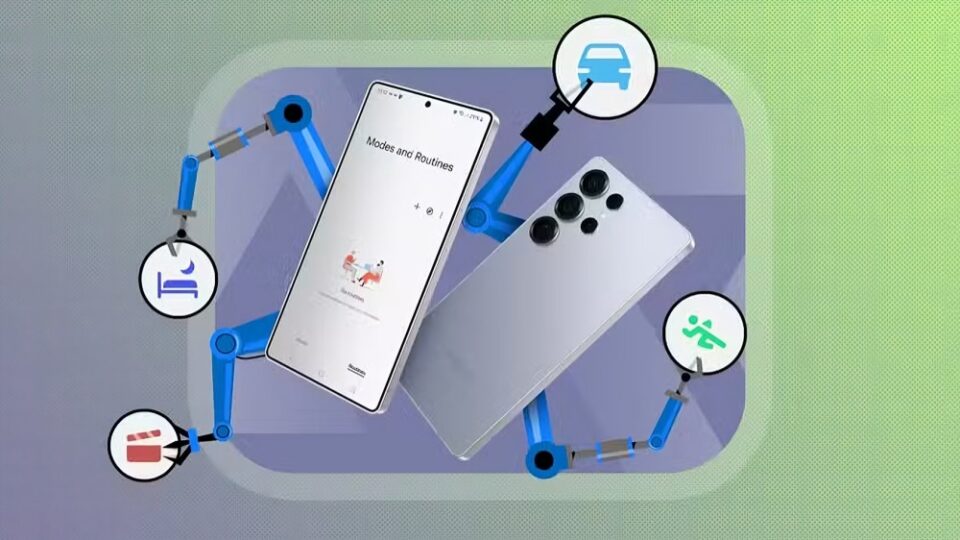
Bixby Routines: My Phone Anticipates Me
The last trick isn’t just useful—it feels almost magical. Bixby Routines let me automate my phone so it adapts to my lifestyle.
At night, my phone automatically lowers brightness, turns on Do Not Disturb, and plays calming white noise. When I get in the car, it launches Google Maps and turns on Bluetooth. When I plug in my headphones, Spotify opens instantly.
It’s like my phone pays attention to my habits and quietly adjusts itself to make things smoother. I don’t have to remember a dozen little settings—Bixby does it for me. Over time, it has started to feel less like a tool and more like a thoughtful companion.
Conclusion
Before I discovered these features, I thought I was using my Samsung phone to its fullest. Now I realize I was only scratching the surface. With Edge Panels, Link to Windows, One-Handed Mode, Secure Folder, Good Lock, and Bixby Routines, my phone doesn’t just sit in my pocket—it actively works with me, for me, and sometimes even ahead of me.
That’s the beauty of Samsung devices: their real power isn’t just in the hardware, but in the hidden features waiting to be unlocked. Once you dive into them, your phone stops feeling like just another device—and starts feeling like a partner in your daily life.
Would you like me to expand this even further into a 10–12 trick article (adding more hidden Samsung features like Smart Select, Edge Lighting, or Samsung DeX), so it feels like a comprehensive guide?
