
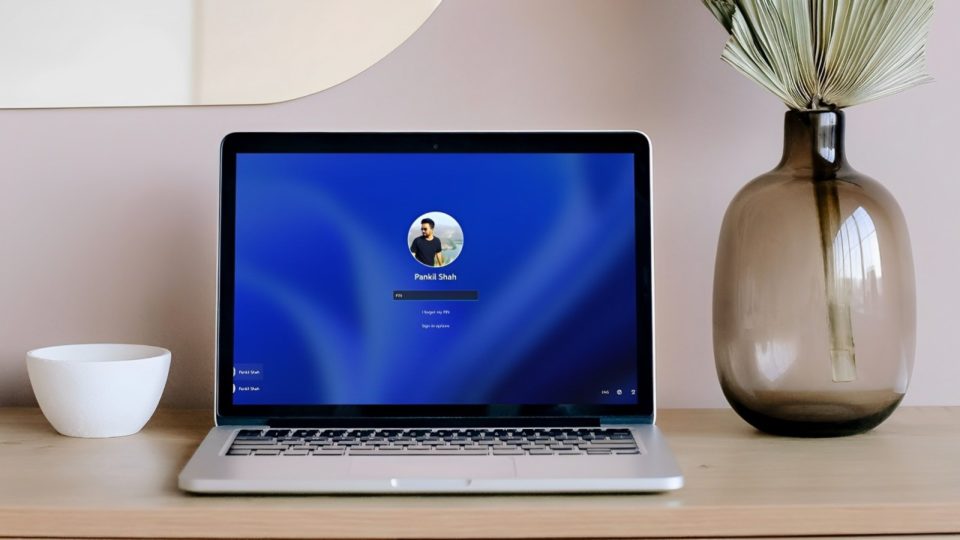
Windows operating systems are designed to safeguard your computer’s security by locking the screen automatically after a period of inactivity. While this feature is valuable for protecting your data, it can sometimes be inconvenient, especially if you frequently step away from your computer. Fortunately, you can customize or disable this feature to better suit your needs. Here’s a step-by-step guide on how to stop Windows from automatically locking itself.
Method 1: Adjust Power & Sleep Settings
Open Settings:
Press Windows + I to open the Settings app
Alternatively, click on the Start menu and select the gear icon.
Navigate to System Settings:
Click on System.
Select Power & sleep from the sidebar.
Change Sleep Settings:
Under the “Screen” section, adjust the drop-down menus for “On battery power, turn off after” and “When plugged in, turn off after” to a longer duration or select “Never” if you don’t want the screen to turn off automatically.
Under the “Sleep” section, do the same for “On battery power, turn off after” and “When plugged in, turn off after.”
Method 2: Modify Screen Saver Settings
Open Screen Saver Settings:
Right-click on at the laptop and pick Personalize
Click on Lock screen on the sidebar.
Adjust Screen Saver:
In the Screen Saver Settings window, you can select None from the drop-down menu if you want to disable the screensaver altogether.
If you prefer to keep the screen saver but extend the time before it activates, increase the Wait time. The time is in minutes.
Disable Password Prompt:
Uncheck the box labeled On resume, display logon screen if you do not want to be prompted for a password when the screen saver is turned off.
Method 3: Change Lock Screen Timeout in Group Policy Editor (for Windows Pro and Enterprise)
Navigate to Local Group Policy:
Go to Computer Configuration.
Expand Administrative Templates.
Expand the Control Panel and then click on Personalization.
Adjust Screen Lock Settings:
Double-click on Screen saver timeout.
Select Disabled or set the timeout to a longer period if you prefer.
Click Apply and then OK.
Method 4: Modify Registry Settings (Advanced Users)
Warning: Editing the Windows Registry can cause system issues if not done correctly. Always lower back up the registry earlier than making changes
Open Registry Editor:
Press Windows + R to open the Run dialog.
Type regedit and press Enter.
.
Modify or Create Values:
Look for the value named InactivityTimeoutSecs. If it doesn’t exist, create it by right-clicking and selecting New > DWORD (32-bit) Value.
Set the value to the desired timeout in seconds, or set it to 0 to disable the timeout.
Click OK and near the Registry Editor.
Method 5: Use a Third-Party Application
There are third-party tools available that can prevent your computer from locking automatically. These gear regularly provide extra customization options:
Caffeine: A small program that simulates user activity to prevent the computer from locking or going to sleep.
Mouse Jiggler: A tool that simulates mouse movement to keep the system active.
Conclusion
Stopping Windows from automatically locking itself can enhance your workflow, especially if you find yourself frequently stepping away from your computer. By adjusting power settings, modifying screen saver settings, using Group Policy Editor, or editing the Registry, you can customize the locking behavior to better suit your needs. Always be cautious when making advanced changes and consider using third-party applications if you prefer a simpler solution.
