
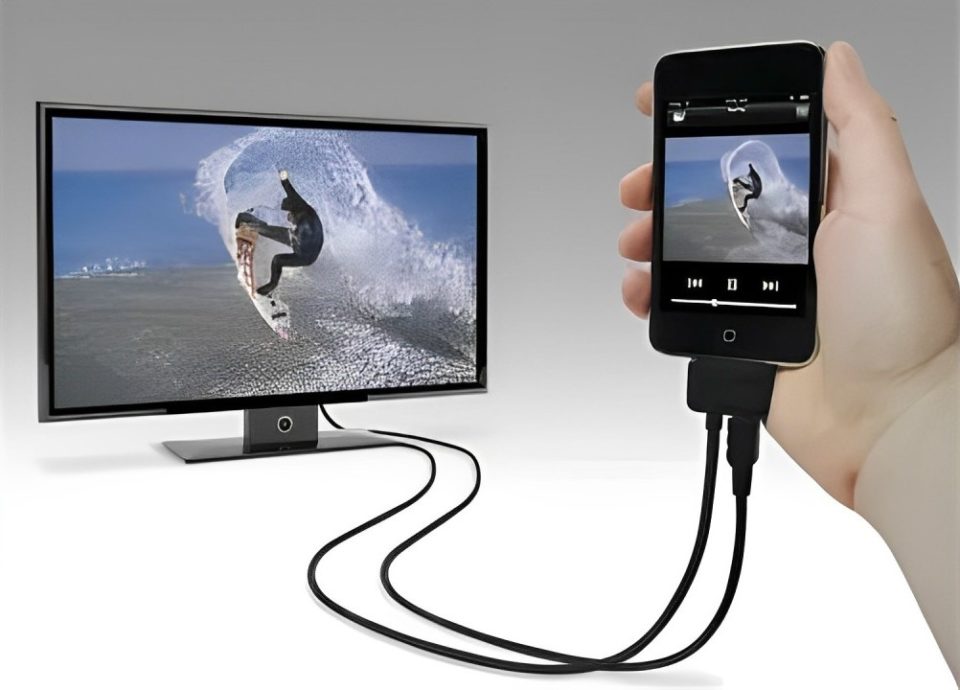
Gone are the days when you needed a complicated setup to connect your smartphone to your TV. Whether you want to share photos, stream videos, or play mobile games on the big screen, connecting your phone to your television is now easier than ever. With the right tools and a simple method, you can enjoy all your smartphone content on a larger, more vibrant screen in just a few steps.
One of the most straightforward ways to achieve this is by using an HDMI cable and an adapter, which makes the process quick, reliable, and seamless. Here’s everything you need to know about how to connect your smartphone to your TV with HDMI.
What You’ll Need
Before we dive into the steps, let’s go over what you’ll need to connect your smartphone to your TV using HDMI:
HDMI Cable: This is the standard cable for transmitting video and audio signals from one device to another.
Smartphone to HDMI Adapter: Most smartphones have a USB-C or Lightning port, so you’ll need an adapter that can convert that into an HDMI output. For Android devices, this is usually a USB-C to HDMI adapter. For iPhones, you’ll need a Lightning to HDMI adapter.
TV with an Available HDMI Port: Most modern televisions have multiple HDMI ports, so this step should be easy.
Smartphone and TV: Obviously, you’ll need a smartphone with content you want to display, and a TV that supports HDMI input.
Step-by-Step Guide to Connecting Your Smartphone to Your TV
Now that you have all the necessary items, let’s walk through the process of connecting your smartphone to your TV using an HDMI cable. The steps are simple and can be completed in just a few minutes.
Plug the HDMI Cable into Your TV
Start by inserting one end of the HDMI cable into an available HDMI port on your TV. Most modern TVs have multiple HDMI ports, so choose one that’s convenient for you. Remember the port number (e.g., HDMI 1, HDMI 2) because you’ll need to select the correct input on your TV later.
Connect the HDMI Adapter to Your Smartphone
Next, take your smartphone’s adapter (USB-C to HDMI for Android, or Lightning to HDMI for iPhone) and connect it to your phone. The other end of the adapter will have an HDMI port where you’ll plug in the other end of your HDMI cable.
Switch Your TV to the Correct HDMI Input
Once your phone and TV are connected, use your TV’s remote to switch to the corresponding HDMI input that matches the port where you plugged in the HDMI cable. For example, if you used HDMI 1, select HDMI 1 from your TV’s input options. You should now see your smartphone screen mirrored on the TV.
Enjoy the Big Screen
Once everything is set up, your smartphone’s display will appear on the TV screen. From here, you can play videos, stream content, display photos, or even play mobile games on a much larger screen.
Why Use HDMI to Connect Your Smartphone to Your TV?
While there are other ways to connect your smartphone to your TV, such as using wireless methods like screen mirroring or casting, using an HDMI cable offers several benefits that make it an attractive option for many users:
Reliable and Stable Connection
One of the key advantages of using an HDMI cable is the reliability and stability of the connection. Wireless options can sometimes suffer from lag, signal interference, or even disconnections, especially in crowded Wi-Fi environments. HDMI provides a consistent and high-quality connection with no risk of buffering or drops.
High-Quality Video and Audio
HDMI cables can support high-definition video and audio, ensuring that the content you stream from your smartphone looks and sounds great on your TV. Whether you’re watching a high-definition video or playing a mobile game with great graphics, HDMI ensures the best quality transfer possible.
No Need for Wi-Fi
Unlike wireless streaming methods, HDMI doesn’t require an internet connection or rely on Wi-Fi to work. All you need is the cable and adapter, making it an ideal option for places with spotty or no Wi-Fi service.
Easy to Set Up
As you’ve seen, the setup process is quick and easy. It’s as simple as connecting the HDMI cable to both your TV and phone, selecting the correct TV input, and you’re good to go! There’s no need for complicated configurations or additional apps.
Troubleshooting Tips
While the process is generally straightforward, you may encounter a few issues. Here are some common troubleshooting tips to ensure a smooth connection:
No Picture or Sound: Double-check that the HDMI cable is securely connected to both the TV and the adapter. Ensure you’ve selected the correct HDMI input on the TV.
Compatibility Issues: Make sure your adapter is compatible with your specific smartphone model. For iPhones, a Lightning to HDMI adapter is required, while Android devices will need a USB-C to HDMI adapter.
Resolution Problems: If the resolution appears blurry or distorted, check the settings on your smartphone. Some devices have screen resolution settings that can be adjusted for better output when connected to a TV.
Phone Not Detecting the TV: Ensure that the adapter you’re using is designed for video output. Some adapters are designed only for charging and data transfer and won’t work for HDMI connections.
Conclusion
Connecting your smartphone to your TV using HDMI is an incredibly simple and effective method to enjoy your phone’s content on a larger screen. Whether you’re sharing videos, playing games, or streaming your favorite shows, HDMI offers a reliable, high-quality connection without the hassle of wireless setup.
So, the next time you want to enjoy your smartphone’s media on the big screen, don’t hesitate to reach for an HDMI cable and adapter. It’s an easy solution that transforms the way you experience entertainment at home.
