
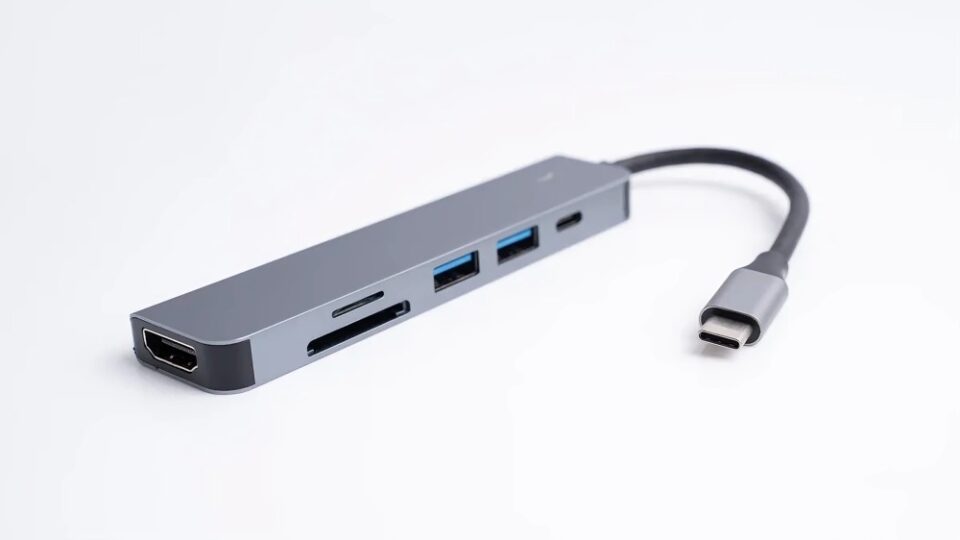
Most people think of their monitor as just a screen—but many modern monitors come equipped with something far more useful: USB ports. These ports can do more than just power a phone or charge a device. In fact, your monitor’s USB hub might be one of the most underutilized features on your desk.
If your monitor has USB-A or USB-C ports (especially USB 3.0 or higher), here are 7 surprising devices you can connect directly—making your desk cleaner, smarter, and more efficient.
External Hard Drives and Flash Drives
Yes, you can plug your USB storage devices straight into your monitor—if it supports data transfer (check if your monitor has a USB-B upstream port connected to your PC). This means you can access files without bending under your desk to reach your PC tower.
Best for:
- Quick access to documents
- Plug-and-play external backups
- Swapping flash drives with ease
USB-Powered Desk Lamps
Need a little light on your workspace? Many sleek, USB-powered LED desk lamps can plug directly into your monitor. No need for wall outlets or long extension cords.
Best for:
- Low-light workspaces
- Adjustable lighting without clutter
- Minimalist desk setups
Phone and Tablet Charging
Most monitor USB ports can handle basic device charging—perfect for keeping your phone alive during the workday. Some USB-C monitors can even support fast charging, depending on their power output.
Best for:
- Charging smartphones, tablets, smartwatches
- Keeping cables out of the way
- Ditching extra wall adapters
USB Headsets or Microphones
If your monitor is connected to your PC via USB-B and supports audio pass-through, you can plug in USB headsets or mics directly into it. This is especially helpful if your computer tower is hard to reach or located under your desk.
Best for:
- Zoom calls, gaming, voice recording
- Reducing cable length
- Easy plug-in access for audio peripherals
Webcams
Modern USB webcams (like Logitech or Razer models) can often be plugged into your monitor’s USB port—especially if you’re short on ports elsewhere.
Best for:
- Streamlining video call setups
- Avoiding tangled cables
- Mounting webcam and plugging it in the same spot
Wireless Dongles (Keyboard, Mouse, Headsets)
Have a wireless keyboard, mouse, or headset that uses a USB receiver? Plug the USB dongle directly into the monitor and keep your devices connected without taking up valuable USB ports on your PC.
Best for:
- Clean, wire-free setup
- Fast access to swap receivers
- Gamers or productivity users with multiple peripherals
USB Fan or Air Purifier
Yes, there are mini USB fans and desktop purifiers that can be powered straight from your monitor. These are ideal for warm offices or stuffy home setups.
Best for:
- Staying cool during long work sessions
- Creating a more comfortable workspace
- Avoiding power strip overloads
Bonus Tip: Check Your Monitor’s Capabilities First
Not all monitor USB ports are created equal. To get the most from them:
- Make sure your monitor is connected to your PC via a USB-B (upstream) or USB-C cable
- Look for blue USB 3.0 ports for faster data
- Don’t overload ports if your monitor has limited power output
Conclusion
That plain-looking monitor on your desk could be a mini hub waiting to simplify your setup. From charging your phone to expanding your USB options, these ports are more versatile than most people realize.
So next time you plug something in, skip the PC tower or power strip—your monitor might already have the solution.
