
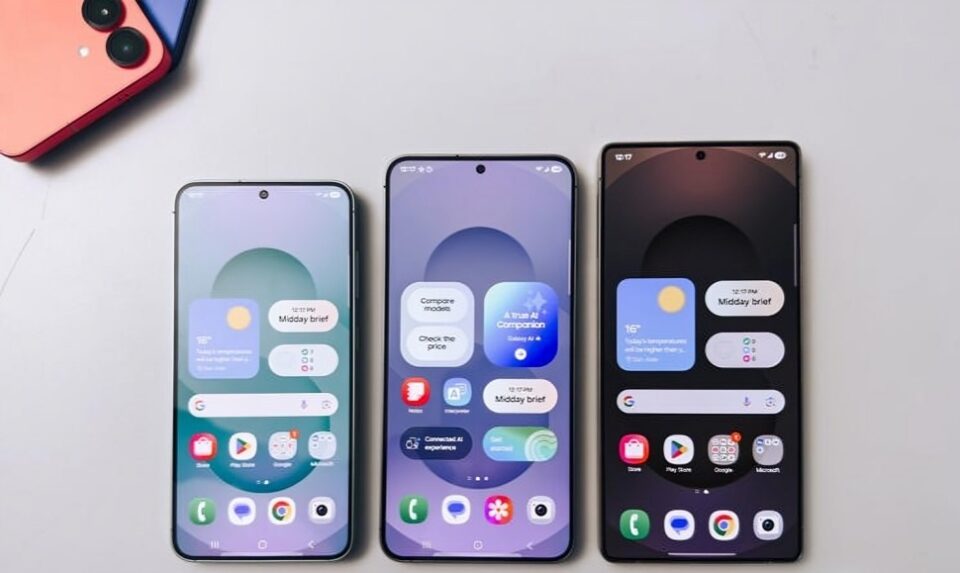
Let’s be honest—out of the box, even the latest Samsung phones can look a little… plain. But the beauty of Android, and Samsung’s One UI in particular, is how customizable it is. You don’t need to root your phone or install complicated mods. With just a few tweaks, you can transform your phone into something that feels fresh, fun, and uniquely you.
Here are 7 easy ways to make your Samsung phone look less boring:
Switch to a Custom Theme
Samsung’s Galaxy Themes store is packed with free and paid themes that completely change the look of your phone—icons, wallpapers, fonts, and even the color of system menus. You can find sleek minimalist looks, vibrant artistic designs, or even animated sci-fi themes.
Go to Settings → Themes or long-press the home screen and tap “Themes” to explore.
Try a New Icon Pack
Icons are the visual heartbeat of your phone. Swapping out the default icons with a new icon pack can make a huge difference. Whether you prefer flat minimal icons or colorful vintage styles, there’s something for everyone on the Galaxy Store or Google Play Store.
Tip: Use a custom launcher (like Nova or Smart Launcher) for full icon pack support.
Customize Your Always On Display
Your Always On Display (AOD) doesn’t have to be just a boring clock. Samsung lets you personalize it with cool designs, custom colors, GIFs, or even Bitmoji characters. It’s a tiny detail that makes your phone feel alive—even when it’s asleep.
Settings → Lock Screen → Always On Display → Clock Style
Use Dynamic Lock Screen Wallpapers
Dynamic Lock Screen lets your wallpaper automatically change every time you unlock your phone. Choose from categories like landscapes, animals, art, or life, and your phone will cycle through beautiful, curated images.
Settings → Wallpaper and Style → Change wallpapers → Dynamic Lock screen
Add Widgets That Actually Look Good
Widgets don’t have to be clunky. Samsung’s One UI supports clean, modern widgets for weather, calendar, music, and more. Even better, third-party apps like KWGT let you create custom widgets to match your aesthetic exactly.
Try minimal or transparent widgets to make your home screen pop.
Use Edge Panels Creatively
The Edge Panel isn’t just for multitasking—it’s also a stylish way to make your phone feel futuristic. You can customize it with app shortcuts, tools like a ruler or compass, your favorite contacts, or even a clipboard manager.
Settings → Display → Edge panels → Panels
Play With Font and Color Settings
Did you know you can change your system font and color scheme? Samsung lets you pick new fonts and adjust accent colors in many parts of the UI. A subtle font tweak or a brighter color accent can make your device feel brand new.
Settings → Display → Font size and style
Settings → Wallpaper and Style → Color palette
Conclusion
Your phone is with you all day—why not make it feel like it belongs to you? With just a few changes, your Samsung device can go from basic to bold, boring to beautiful. Whether you’re into minimalist vibes or full-blown personalization, these small tweaks can make a big difference.
So go ahead—ditch the default and give your phone a little personality. You deserve it.Would you like a version optimized for TikTok/Instagram captions or a YouTube script?
