
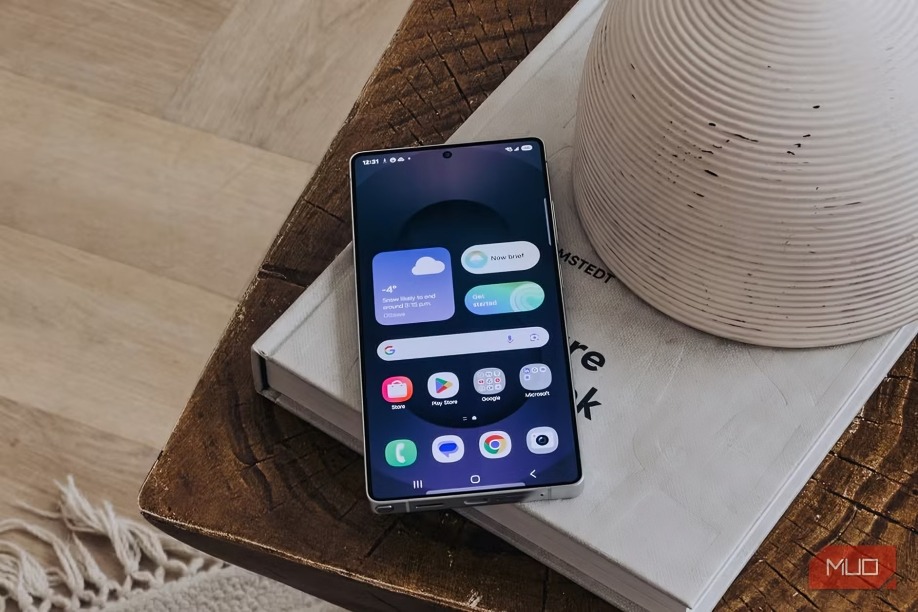
Samsung phones are packed with powerful features and sleek design—but like any smart device, they can quietly gather and share more personal data than you may realize. If you’re using a Samsung device, it’s time to take a few minutes and lock down your privacy.
Here are six essential privacy tweaks every Samsung user should make right now to protect their data, limit tracking, and take back control of their digital life.
Turn Off Ad Personalization
Samsung and its partners use your data to serve targeted ads—but you can limit this.
How to do it:
- Go to Settings > Security and Privacy > Privacy
- Tap Ads and Privacy
- Toggle “Opt out of Ads Personalization” to ON
This won’t eliminate ads, but it will stop them from being tailored using your personal data and behavior.
Limit App Permissions
Many apps request access to your camera, location, microphone, and more—often unnecessarily. You can audit these permissions in a few simple steps.
How to do it:
- Go to Settings > Security and Privacy > Privacy > Permission Manager
- Review permissions like Location, Microphone, and Camera
- Set sensitive permissions to “Allow only while using” or “Deny” for apps that don’t need them
This prevents apps from silently gathering data in the background.
Disable Samsung’s Custom Data Collection
Samsung collects analytics and diagnostic data by default, but you can limit or stop this.
How to do it:
- Go to Settings > Samsung Account > Privacy
- Tap Customization Service and turn it off
- Also turn off Send Diagnostic Data
This reduces the amount of information sent back to Samsung’s servers about your habits and device usage.
Use Secure Folder for Sensitive Files
Samsung’s Secure Folder allows you to store apps, files, and photos in an encrypted, password-protected space.
How to enable it:
- Go to Settings > Security and Privacy > Secure Folder
- Set it up with your Samsung account
- Move sensitive apps, photos, or documents into the folder
This is especially useful for personal conversations, private documents, or banking apps.
Enable Auto-Blocker (One UI 6 and Later)
Samsung’s Auto Blocker protects your phone from suspicious apps, USB connections, and software installations from unknown sources.
How to turn it on:
- Go to Settings > Security and Privacy > Auto Blocker
- Enable the features like Block apps from unknown sources and Block harmful commands via USB
It’s a quick way to stop potentially malicious content before it even reaches your device.
Use Samsung Pass or a Trusted Password Manager
Storing passwords in your browser is risky. Instead, use Samsung Pass or a secure third-party password manager to manage logins with biometric security.
How to set up Samsung Pass:
- Go to Settings > Security and Privacy > Samsung Pass
- Register your biometrics (fingerprint/face)
- Import passwords from apps and websites
This ensures your credentials are encrypted and only accessible by you.
Conclusion
Samsung gives you more control over your privacy than you might expect—but those tools aren’t helpful unless you know they exist and use them.
By making these six tweaks today, you’re not just tightening security—you’re sending a clear message: your data is yours.
It only takes a few minutes to make your Samsung phone a lot more private—and a lot more yours.
