
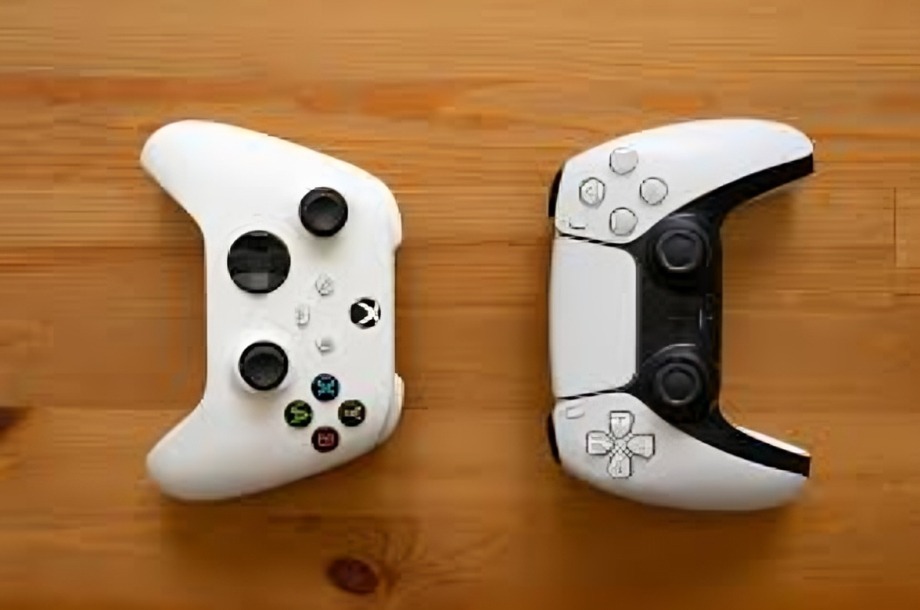
Microsoft continues to innovate and enhance its operating system by introducing new features that improve accessibility and user experience. One of the latest updates to Windows 11 brings a game-changing feature for console users: the ability to easily type using an Xbox controller. This feature bridges the gap between gaming and everyday computing, making navigation, communication, and input simpler for those who prefer a controller over a traditional keyboard.
How the Feature Works
The new Xbox controller typing functionality in Windows 11 allows users to input text without needing a physical keyboard. Instead, they can navigate an on-screen keyboard using the thumbsticks and buttons on their Xbox controller, much like they would on an Xbox console. This feature is particularly useful for:
Gamers who frequently switch between gaming and messaging on their PC.
Users who use their PC in a console-like setup, such as a living room entertainment system.
Those with accessibility needs who find a controller easier to use than a standard keyboard.
Steps to Enable and Use Xbox Controller Typing
Microsoft has made this feature easy to access and use. Here’s how to get started:
Connect Your Xbox Controller
Pair your Xbox controller to your PC via Bluetooth or USB.
Ensure your Windows 11 system recognizes the controller.
Enable the On-Screen Keyboard
Open Windows Settings and navigate to Accessibility > Keyboard.
Enable the On-Screen Keyboard option.
This will allow you to type using controller navigation.
Start Typing Using the Controller
Open any text field, such as a web browser search bar, messaging app, or document.
The on-screen keyboard will appear automatically.
Use the left thumbstick to highlight characters and press ‘A’ to select them.
Utilize additional buttons (such as ‘B’ to delete and ‘X’ for space) for faster input.
Adjusting Settings for Better Usability
Users can adjust controller sensitivity, key repeat rate, and other input options via the Windows 11 settings.
Customizing button mapping through the Xbox Accessories app can further improve efficiency.
Benefits of Controller-Based Typing in Windows 11
The introduction of Xbox controller typing in Windows 11 brings several advantages:
Convenience for Gamers
Players can now reply to messages, search for content, and interact with their PC without needing to switch to a keyboard.
Better Accessibility
For users with mobility impairments, controller-based input can be an easier alternative to traditional keyboards.
Improved Big Screen Experience
Those using their PC as a media center on a TV can navigate menus and enter text without needing a separate keyboard and mouse.
Seamless Integration Across Devices
The feature mirrors Xbox’s existing virtual keyboard experience, creating a familiar interface for console users who frequently switch to PC.
Limitations and Possible Improvements
While this feature offers many advantages, there are some limitations:
Slower Input Speed
Typing with a controller is inherently slower than using a keyboard, making it less practical for extensive text input.
Limited to On-Screen Keyboard Navigation
Unlike a keyboard, which allows for shortcut keys and quick typing, controller-based input still relies on manually selecting each letter.
Compatibility Concerns
Some applications may not fully support this feature, limiting its usability in certain programs.
Microsoft could improve this feature in future updates by integrating predictive text, voice input shortcuts, and enhanced customization options.
Conclusion
The ability to type using an Xbox controller in Windows 11 is a welcome addition for gamers, accessibility-focused users, and those who prefer a more console-like experience on their PC. While it may not replace traditional keyboards for heavy text input, it provides a convenient alternative for navigation and quick messaging. As Microsoft continues refining Windows 11’s features, this innovation highlights the company’s commitment to user-friendly, cross-platform functionality.
