
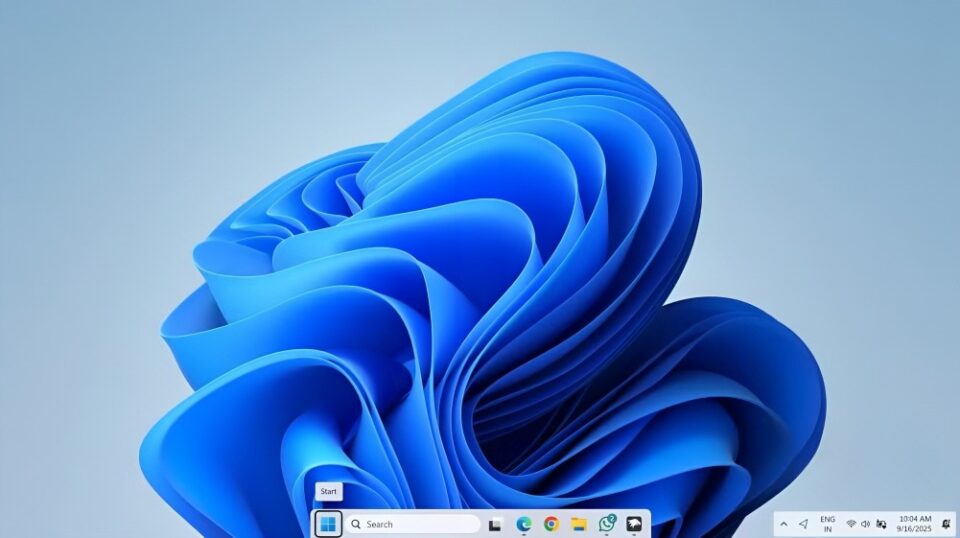
When Microsoft launched Windows 11, one of the most controversial changes wasn’t the rounded corners, new icons, or even the redesigned Start menu—it was the taskbar. For decades, the taskbar has been the anchor of the Windows experience. It’s where we keep our favorite apps, where we glance at notifications, and where multitasking feels effortless. But in Windows 11, Microsoft took away many of the features users had relied on for years.
Suddenly, you couldn’t move the taskbar to the top or sides of the screen. Drag-and-drop functionality—a staple for productivity—was gone. Customization options became painfully limited. Sure, the centered icons looked modern and sleek, but when usability takes a hit, looks alone can’t make up for it.
Like many others, I found myself frustrated. I experimented with registry tweaks, tried clunky third-party hacks, and spent months wrestling with what felt like a “downgraded” experience. And then I discovered something that finally solved the problem: ExplorerPatcher.
The Tiny Tool That Fixed Everything
ExplorerPatcher isn’t a bulky app or a complicated workaround—it’s a lightweight, open-source tool that restores many of the features Microsoft stripped away in Windows 11. What makes it special is how seamlessly it integrates into the operating system. Instead of feeling like a bolt-on fix, it feels like Windows itself is finally behaving the way it should.
Here’s what ExplorerPatcher brings back:
- Taskbar placement freedom – Want your taskbar at the top? Left side? Right side? ExplorerPatcher lets you put it exactly where you want.
- Drag-and-drop functionality – That simple yet powerful workflow of dragging files onto app icons finally returns.
- Start menu customization – Switch between the new Windows 11 look or the classic Windows 10 Start menu.
- System tray tweaks – Control how your tray icons behave, display, and interact.
- Lightweight performance – Despite restoring so many features, ExplorerPatcher doesn’t bog down your system or add unnecessary clutter.
With just a few clicks, I had my taskbar looking and functioning the way it always should have. For the first time since installing Windows 11, I didn’t feel like I was compromising.
Why Microsoft Should Be Paying Attention
The popularity of tools like ExplorerPatcher and StartAllBack highlights something Microsoft can’t afford to ignore: customization matters. Windows has always been known for flexibility. It’s what set it apart from macOS and other operating systems. People want to use their PC their way.
By locking the taskbar into a single position and removing decades-old features, Microsoft stripped away part of Windows’ identity. Power users felt alienated, and casual users felt inconvenienced.
Interestingly, Microsoft has slowly started walking back some of these decisions—drag-and-drop support eventually returned in a later update. But even then, it doesn’t go nearly as far as ExplorerPatcher. That says a lot about the gap between what users want and what Microsoft is delivering.
Living With Windows 11 Again
Thanks to ExplorerPatcher, I no longer sigh every time I boot up my PC. The taskbar feels familiar again, and I’m back to working efficiently instead of fighting against the interface. Windows 11 has plenty of strengths—its clean design, performance optimizations, and improved security are all great—but its taskbar missteps created unnecessary friction.
Sometimes, the solution to a big frustration isn’t a major update or a system overhaul—it’s a small, smart tool built by developers who understand what users actually need.
Conclusion
ExplorerPatcher might be “tiny” compared to Microsoft’s massive updates, but its impact is anything but small. It gave me back control, restored lost functionality, and turned Windows 11 from something I tolerated into something I genuinely enjoy using again.
This experience taught me an important lesson: sometimes, it’s not the giant features that define whether technology feels good to use. It’s the little conveniences, the thoughtful details, and the flexibility to make it your own. And for me, that’s exactly what this tiny tool delivered—it finally made me make peace with Windows 11’s taskbar.
Would you like me to also add a quick installation & setup guide (step-by-step with best settings), so the article works both as a personal story and a practical tutorial for readers who want to try ExplorerPatcher themselves .
