
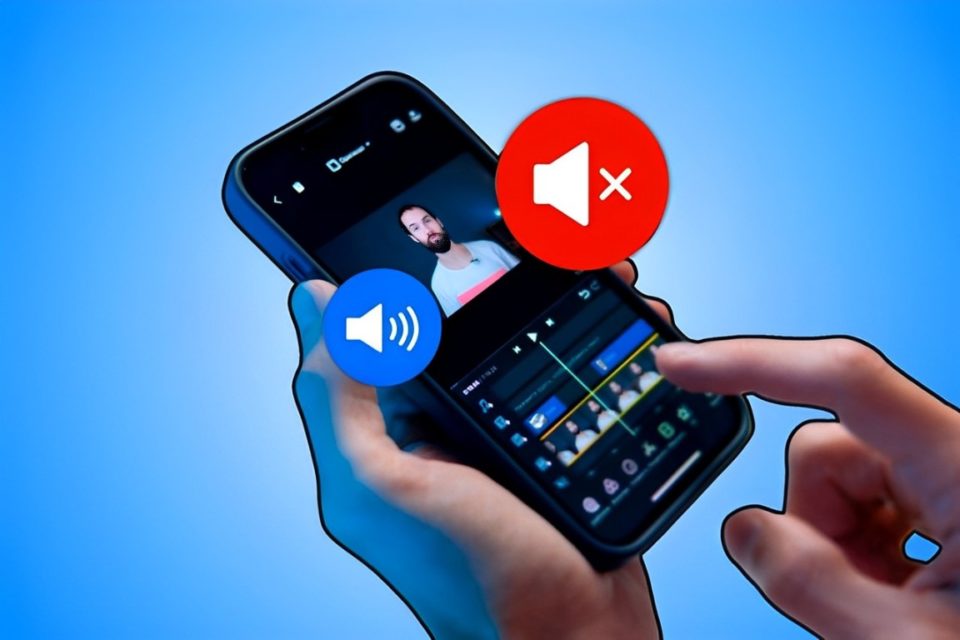
Muting a video is often necessary when you want to share content without background noise, eliminate distracting audio, or overlay new sound like music or narration. Fortunately, both iPhone and Android devices offer simple tools to mute video files quickly without requiring advanced editing skills. Whether you’re creating a social media post, sending a video to friends, or saving it for later use, here’s how you can effortlessly mute any video on your smartphone.
Muting a Video on iPhone
The iPhone’s built-in Photos app makes it incredibly easy to mute any video without needing third-party apps. Follow these steps:
Open the Photos App
Launch the Photos app and locate the video you want to mute.
Tap Edit
Once the video is selected, tap the Edit button in the top-right corner of the screen.
Mute the Video
At the top-left corner, you’ll see a speaker icon. If the video has sound, the icon will display sound waves. Tap the icon, and it will turn into a crossed-out speaker, indicating the audio is now muted.
Save the Muted Video
Tap Done at the bottom-right corner to save the muted video. The audio will be removed, and you’ll now have a clean, silent version of your video.
Key Benefit: This method is quick, doesn’t require an app download, and works seamlessly with iOS’s native tools. If you ever want to restore the audio, you can return to the Edit screen and tap the speaker icon again.
Muting a Video on Android
Android devices vary slightly depending on the manufacturer, but most modern phones come with built-in tools to edit and mute videos directly in the Gallery or Photos app. Here’s a general method:
Open the Gallery or Google Photos App
Locate the video you want to mute using the Gallery app or Google Photos.
Edit the Video
Tap the video to open it, and look for the Edit icon (usually a pencil or sliders symbol).
Access Audio Settings
In the editing tools, look for an option to mute the audio. For instance, you might see a speaker icon or an “Audio” section. Tap to disable or turn off the audio.
Save the Muted Video
Once the audio is muted, tap Save or Export. This creates a new muted version of the video while keeping the original intact.
For Google Photos Users:
If you’re using Google Photos to edit videos:
Open the video, tap Edit > Adjust Audio, and slide the audio bar all the way down to mute. Save the video to finalize the changes.
Using Third-Party Apps to Mute Videos
If you’re looking for more advanced features or your phone’s native tools don’t meet your needs, third-party apps are a great alternative. Some top-rated apps include:
InShot (iOS and Android)
Steps: Open the app, import your video, and tap on the Volume icon. Reduce the volume to zero and save the muted video.
Why It’s Great: InShot is easy to use, free, and also lets you add music, text, and effects.
CapCut (iOS and Android)
Steps: Import your video, tap Edit, and choose the Mute option to remove audio. Save the edited file.
Why It’s Great: CapCut is a versatile editor with advanced tools that remain beginner-friendly.
VLC Media Player (Android Only)
VLC is a free app that lets you edit videos, including removing audio. Import your video, go to Convert > Audio settings, and turn off the sound.
Why You Might Want to Mute a Video
There are several reasons you may want to remove the audio from a video:
Remove Background Noise: Distracting sounds like wind, traffic, or talking can ruin a good video.
Add Your Own Soundtrack: A muted video lets you overlay music or voiceovers without interference.
Maintain Privacy: Muting removes unintended conversations or sensitive audio from being shared.
Social Media Content: Clean, silent videos are easier to customize for platforms like Instagram, TikTok, and YouTube.
Tips for Sharing Muted Videos
Add Captions or Text: If you’re muting a video for sharing, consider adding text or captions to communicate your message visually.
Pair It With Music: Use free music from apps or libraries like YouTube Audio Library to enhance your muted videos.
Keep Original Copies: Always save the original video in case you need the audio later.
Conclusion
Muting a video file on iPhone or Android is surprisingly simple, thanks to built-in tools and intuitive editing apps. Whether you’re using the Photos app on iPhone, the Gallery app on Android, or third-party editors like InShot and CapCut, you can remove audio in just a few taps. With this skill in your toolkit, you’ll have more control over your videos, allowing you to share, customize, or repurpose them effortlessly. So the next time you want a clean, sound-free video, you’ll know exactly what to do!
