
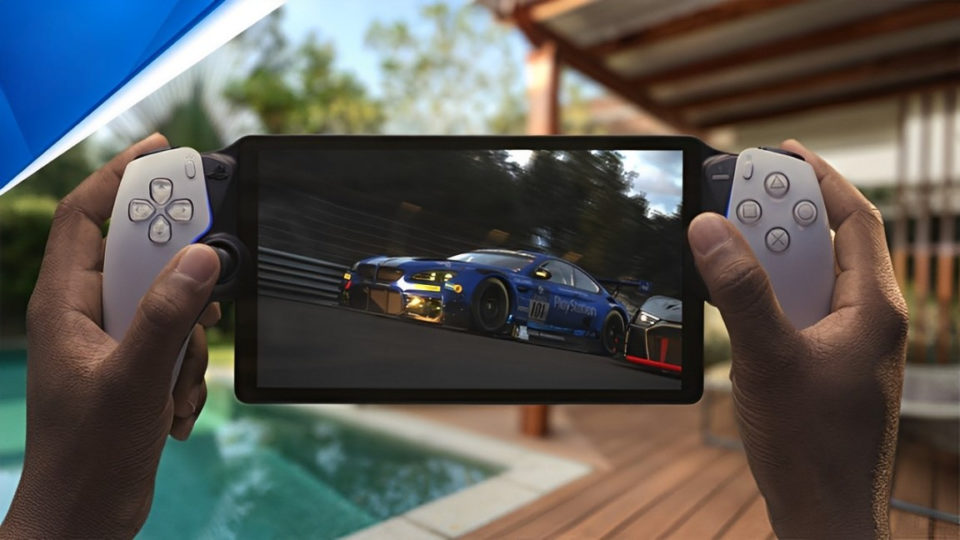
The Steam Deck has opened up new possibilities for gaming on the go, and one of the most exciting features is the ability to play PlayStation 5 (PS5) games remotely. This means you can enjoy your favorite PS5 titles from anywhere, using the Steam Deck’s compact, portable design. If you’re a PS5 owner who also has a Steam Deck, you’re in luck! Here’s a step-by-step guide on how to remote play PS5 games on your Steam Deck.
What You’ll Need
To begin, ensure you have the following essentials:
PlayStation 5 Console: Ensure your PS5 is set up and connected to the internet.
Steam Deck: A fully charged Steam Deck with internet access.
PS Remote Play App: This app is required for streaming PS5 games to your Steam Deck.
A Reliable Internet Connection: A high-speed internet connection is essential for a smooth remote play experience.
Step 1: Set Up Your PS5 for Remote Play
First, you need to enable Remote Play on your PS5:
Go to Settings: On your PS5, navigate to Settings.
Select System: In the settings menu, select System.
Enable Remote Play: Go to Remote Play and turn on the Enable Remote Play option. This setting will allow your PS5 to connect with other devices for remote gaming.
Step 2: Install the PS Remote Play App on Your Steam Deck
The next step is to install the PS Remote Play app on your Steam Deck. Here’s how:
Access Desktop Mode: Switch your Steam Deck to Desktop Mode. This can be done by holding the power button and selecting Switch to Desktop.
Open a Web Browser: Open a web browser in Desktop Mode and visit the PlayStation Remote Play website.
Download the PS Remote Play App: Download the Linux version of the PS Remote Play app.
Install the App: Follow the installation prompts to install the app on your Steam Deck.
Step 3: Configure the PS Remote Play App
Once the app is installed, you need to set it up:
Launch the PS Remote Play App: Open the app on your Steam Deck.
Sign In: Use your PlayStation Network (PSN) account credentials to sign in. Make sure you use the same account that’s logged into your PS5.
Connect to Your PS5: The app will search for your PS5. Once found, select it to connect. Ensure your PS5 is in rest mode or powered on.
Step 4: Optimize Your Streaming Settings
For the best gaming experience, it’s important to optimize the streaming settings:
Go to Settings in PS Remote Play App: Look for settings related to streaming quality. Choose the highest quality that your internet connection can support.
Adjust Resolution and Frame Rate: Set the resolution and frame rate to match your preferences and the capabilities of your network. Higher settings may require more bandwidth.
Step 5: Use a Compatible Controller
To play PS5 games, you’ll need a compatible controller:
Connect a DualSense Controller: For the full PS5 experience, use a DualSense controller. You can connect it to your Steam Deck via Bluetooth or USB.
Configure the Controller: Ensure the controller is recognized by both the Steam Deck and the PS Remote Play app.
Step 6: Start Playing!
With everything set up, you’re ready to start playing:
Select Your PS5: In the PS Remote Play app, select your PS5 to start streaming.
Launch a Game: Use the app interface to navigate your PS5’s menu and select the game you want to play.
Enjoy Gaming on the Go: Now you can play your favorite PS5 games directly on your Steam Deck, whether you’re at home or on the move.
Tips for a Better Remote Play Experience
Use a Stable Wi-Fi Connection: A strong and stable Wi-Fi connection is crucial for reducing lag and maintaining game quality.
Keep Your Devices Updated: Ensure that both your PS5 and Steam Deck are running the latest software updates.
Close Background Applications: Closing unnecessary apps on your Steam Deck can free up resources and improve streaming performance.
Adjust Game Settings: Some games may perform better with adjusted graphics settings when streamed.
Conclusion
Playing PS5 games on your Steam Deck via Remote Play opens up a new world of gaming possibilities. Whether you’re relaxing on the couch, traveling, or just want to enjoy your PS5 library on a portable device, this setup is a game-changer. By following these steps, you can seamlessly integrate the power of your PS5 with the portability of the Steam Deck, providing a versatile and enjoyable gaming experience. Happy gaming!
